
Advanced File Recovery Review: Restore Deleted Files Easily
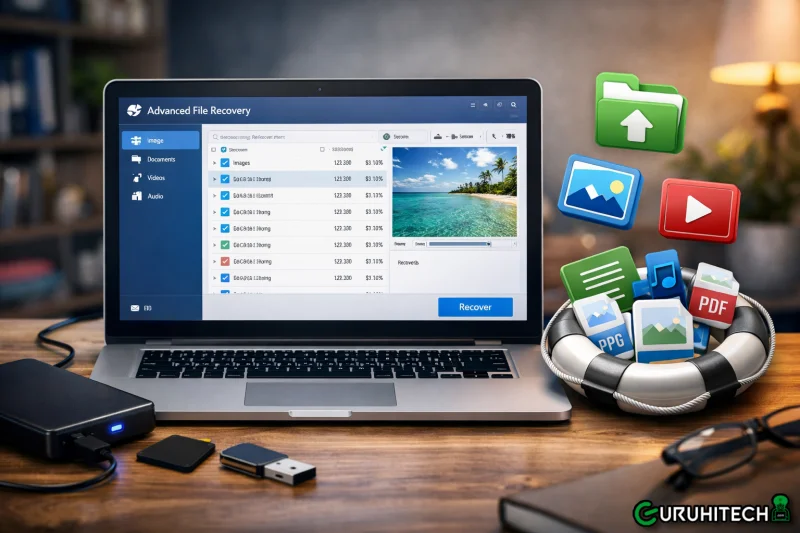
Losing important files on Windows 11 can happen in seconds, whether a document is deleted accidentally, a folder or data disappears due to a system crash. Such moments often create panic, especially when backups are missing or incomplete. Fortunately, modern recovery tools are designed to handle these situations efficiently. This article reviews Advanced File Recovery, a solution built to help users recover deleted files on Windows 11 without complex steps.
Index
- Part 1. What Advanced File Recovery Is and Who It’s For?
- Part 2. Key Features of Advanced File Recovery
- Part 3. Mastering Advanced File Recovery: Simple Steps for Success
- Part 4. Pros and Limitations of Advanced File Recovery
- Part 5. Why You Should Consider Recoverit as Your First Recovery Option
- Conclusion
Part 1. What Advanced File Recovery Is and Who It’s For?
Recovering lost data on Windows 11 becomes less stressful when the right tool is available. Advanced File Recovery is designed to help users retrieve deleted or inaccessible files quickly, even when they seem permanently lost. Built with a simple interface and powerful scanning technology, it caters to both beginners and experienced users.
Who Uses This Tool
1. Accidental Deletion Victims: Files removed by mistake, including documents and media, can often be restored with minimal effort. The tool scans storage locations thoroughly to locate recently deleted data.
2. Windows 11 Home Users: Everyday users who lack technical expertise can navigate the recovery process easily. Clear prompts and guided steps make SONY RSV file recovery straightforward.
3. Professionals and Freelancers: Work-related files lost due to crashes or system errors can disrupt productivity. Advanced File Recovery helps recover critical data without requiring advanced technical skills.
4. Students and Educators: Assignments and research files can disappear due to sudden shutdowns or storage issues. The software supports common file formats used in academic work for quick recovery.
Part 2. Key Features of Advanced File Recovery
Before diving into the specific strengths, it’s important to understand what sets Advanced File Recovery apart from generic tools. This software combines deep scanning technology with broad device support, which is visible across its prominent features offered as follows:
Key Features Offered By Advanced File Recovery
1. File Type Filtering: You can filter results by specific file types, which speeds up locating relevant files in large scan results. By narrowing down formats like images, videos, or documents, the recovery process becomes more targeted and efficient.
2. Formatted & Corrupt Drive Recovery: The software can restore data lost due to drive formatting or corruption, addressing serious data loss events beyond simple deletions. This feature broadens its usefulness for more complex recovery needs.
3. Format-Based Scanner: Advanced File Recovery includes a dedicated scanner designed to locate files lost after formatting events. This scanner searches deeply through storage sectors to identify recoverable data accurately.
4. Organized Scan Results: Recovered files are automatically scanned, fetched, and structured into clearly labeled result categories. This organized presentation helps users quickly locate specific files without sorting through cluttered lists.
5. File Preview Option: The preview feature allows users to check file contents before initiating the recovery process. Previewing files improves recovery accuracy and prevents restoring unnecessary or incorrect data.
Part 3. Mastering Advanced File Recovery: Simple Steps for Success
Having learned about this tool in detail, let us now have a look at the step-by-step guide on how to recover files on Windows 11 using this efficient tool:
Step 1. On the first screen, choose the drive or location you wish to scan for lost files on your Windows 11 PC. Then select your preferred scan type and click “Start Scan” to begin.
Step 2. Once the scan settings are configured, you’ll see options to narrow your search by file type, such as documents or media. Choose the specific formats you want recovered to streamline the upcoming search results and click “Next” to proceed.
Step 3. After the scan completes, the software displays all found files categorized by type or folder hierarchy for easier browsing. Use the “Preview” feature to inspect recoverable files before deciding which ones to restore.
Step 4. Once you’ve selected the files you want, click “Recover Now” and choose a destination folder where the data will be saved.
Step 5. After completion, a summary screen reveals the total files scanned, selected, and successfully restored, allowing you to verify results.
Part 4. Pros and Limitations of Advanced File Recovery
Before deciding whether a Sony RSV file recovery tool fits your needs, weighing its strengths against potential drawbacks is essential. Beyond core scanning and recovery features already discussed, Advanced File Recovery offers several practical advantages that improve everyday usability and overall experience.
Pros of Advanced File Recovery
- The software installs quickly and does not consume excessive system resources during setup.
- Each file is labeled with a recovery likelihood indicator after scanning completes.
- Menu layouts and on-screen instructions are easy to understand without technical explanations.
- Advanced File Recovery runs scans without noticeably slowing down other active applications.
- Users get the ability to start and stop the scan according to their preferences.
Limitations of Advanced File Recovery
While the tool performs well in many scenarios, it’s important to recognize its limitations to set realistic expectations. Understanding these constraints helps users decide whether it aligns with their advanced file recovery requirements:
1. Limited Free Recovery: The free version allows scanning but restricts actual file recovery. Users must upgrade to the paid version to restore recovered data.
2. Windows-Only Support: Advanced File Recovery is designed exclusively for Windows operating systems. Mac or Linux users will need alternative recovery solutions.
3. No Real-Time Protection: The software focuses on post-loss recovery rather than proactive data protection. It does not offer backup or real-time file monitoring features.
4. Scan Time Variability: Deep scans can take considerable time on large or heavily fragmented drives. Older systems may experience longer waiting periods during thorough scans.
User Reviews for Advanced File Recovery
“I rarely write reviews, but Advanced File Recovery genuinely deserves it. I accidentally deleted some extremely important documents and photos, and this app recovered them within minutes…” – Sushant Krishnatrey
“I accidentally deleted my vacation pictures, but thankfully I had Advanced File Recovery on my computer. Not only it proved to be handy to use but also helped me recover all the deleted images..” Mindy Anchorman
Part 5. Why You Should Consider Recoverit as Your First Recovery Option
Losing access to valuable data can disrupt both personal and professional workflows, which is why choosing a capable Sony RSV file recovery solution matters. Built to address a wide range of data loss situations, Recoverit combines intelligent scanning technology with an easy-to-navigate interface. Its advanced algorithms dig deep into storage devices to retrieve files that seem permanently lost, while support for numerous file formats adds flexibility.
The ability to preview recoverable items beforehand helps ensure accuracy and confidence. Backed by a strong recovery rate of 99.5% and consistent performance, the Recoverit data recovery tool proves to be a dependable option worth considering as a primary data recovery solution.
Incredible Features Offered By Recoverit
1. Batch File Recovery: Recover multiple lost or deleted files in one go without repeating the recovery process.
2. Multiple File Format Support: Recover multiple lost or deleted files in one go without repeating the recovery process.
3. Advanced Recovery Mode: Utilize deep scanning technology to locate files that are severely damaged or lost.
Comprehensive Steps to Recover Lost or Deleted Files With Recoverit
As mentioned earlier, Recoverit delivers fast and reliable data recovery with minimal effort. Below is a clear, step-by-step walkthrough explaining how to recover a deleted file in Windows 11 using this tool:
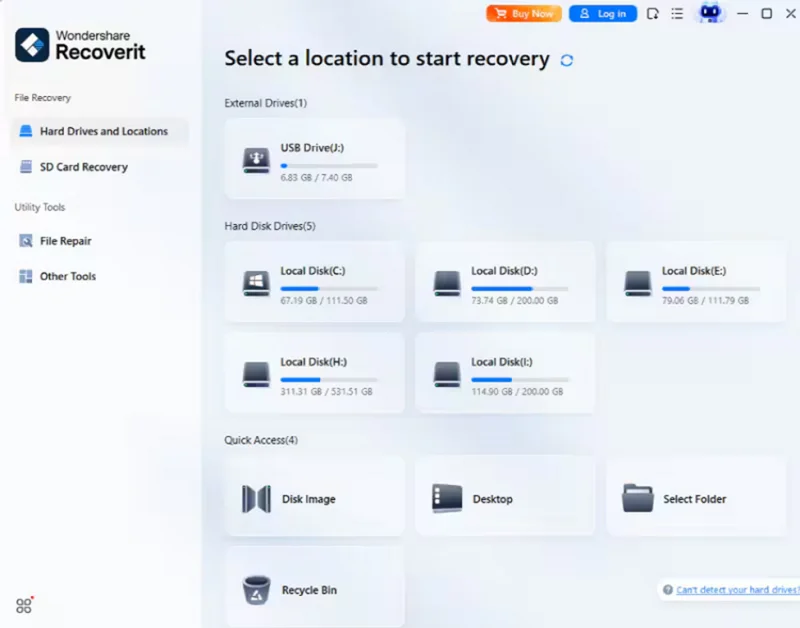
Step 1. Choose the Scan Location
Launch Recoverit and select the disk, folder, or external storage device from which the data was lost or corrupted. Once selected, the software automatically begins scanning the location.
Step 2. Locate and Select Files
After the scan finishes, all recoverable files are shown in a structured list. Browse through the results, select the files you wish to restore, and click the “Recover” button to proceed further.

Step 3. Preview and Store Files
Check the files using the preview option to ensure they are usable. Once confirmed, finalize the recovery by saving it using the “Recover” button.

Conclusion
To sum it up, this article provided a complete review of Advanced File Recovery, which is used to recover deleted files on Windows 11. The article provided a detailed tutorial on how to use this tool, along with its pros and cons. However, if you want to get back your files in no time, you can use tools like Recoverit. This advanced data recovery tool allows users to restore their damaged and deleted data while keeping the quality intact.
Ti potrebbe interessare:
Segui guruhitech su:
- Google News: bit.ly/gurugooglenews
- Telegram: t.me/guruhitech
- X (Twitter): x.com/guruhitech1
- Bluesky: bsky.app/profile/guruhitech.bsky.social
- GETTR: gettr.com/user/guruhitech
- Rumble: rumble.com/user/guruhitech
- VKontakte: vk.com/guruhitech
- MeWe: mewe.com/i/guruhitech
- Skype: live:.cid.d4cf3836b772da8a
- WhatsApp: bit.ly/whatsappguruhitech
Esprimi il tuo parere!
Ti è stato utile questo articolo? Lascia un commento nell’apposita sezione che trovi più in basso e se ti va, iscriviti alla newsletter.
Per qualsiasi domanda, informazione o assistenza nel mondo della tecnologia, puoi inviare una email all’indirizzo [email protected].
Scopri di più da GuruHiTech
Abbonati per ricevere gli ultimi articoli inviati alla tua e-mail.