

Image to Video Free: 5 Best Tools for Turning Photos Into Videos Online
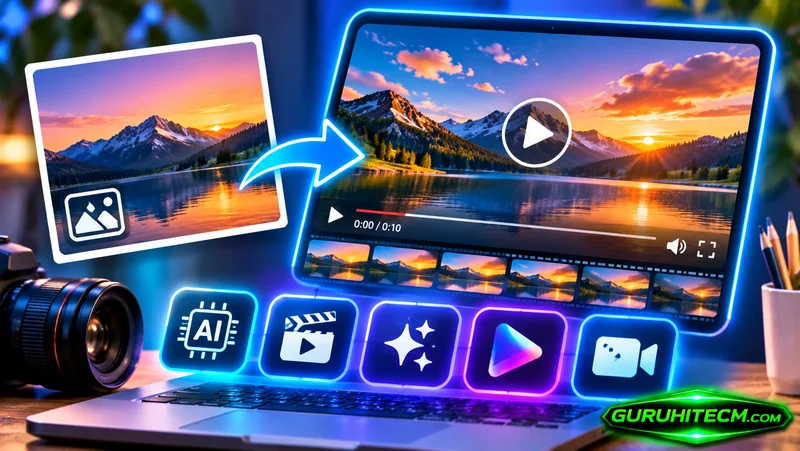
A single photograph can capture a memorable moment, showcase a product, or communicate a brand’s identity. But when you want to share that image on video-first platforms, a static picture may not be enough. An image to video free tool can help transform ordinary photos into engaging clips with AI-generated movement, camera effects, and visual transitions. With an image to video AI free online platform, you can create videos directly in your browser without learning professional animation software.
The challenge is choosing the right tool. Some platforms focus on quick photo animation, while others provide advanced motion controls, multiple AI models, or professional editing features. Below are five options worth exploring, starting with accessible online tools and moving toward more advanced creative platforms.
1. ImageMover – A Flexible Online Image to Video Generator
ImageMover is an online AI image to video generator designed for creators, marketers, and businesses that want to turn existing images into short videos. Its workflow is straightforward: upload an image, customize the generation settings, and preview the result.
One of its useful features is the range of supported AI models. The website currently highlights Fast 2.1, Pro 2.6, Sora 2, and Veo 3.1, giving users different options for balancing generation speed, visual quality, and creative requirements.
ImageMover also offers custom start and end frame controls. Rather than relying entirely on a single uploaded photograph, users can define how a clip begins and ends. This can be useful when creating a more controlled visual transition or trying to maintain a consistent scene.
Other features include:
- Support for PNG, JPG, and WEBP images up to 16MB
- Adjustable video duration and resolution
- AI-generated sound effects
- Video preview, regeneration, and extension
- An online workflow for product videos, portraits, and social media content
ImageMover offers a free experience for users who want to test its generation capabilities, with additional features and credits available through premium options.
Best for: Creators who want to experiment with different AI models, animate product photography, and produce short-form social media content.
2. ImageToVideo AI – A Browser-Based Tool for Creative Video Generation
ImageToVideo AI provides a browser-based workflow for transforming static images into AI-generated videos. It is designed for users who want to create more than basic photo slideshows, including product animations, social media clips, and short cinematic scenes.
The process begins with uploading an image and describing the movement or visual effect you want. Users can then select an available model, adjust generation settings, and preview the resulting video.
The platform highlights several practical applications:
- Product marketing: Turn product photographs into more dynamic promotional visuals.
- Social media content: Create short clips for TikTok, Instagram Reels, and YouTube Shorts.
- Character animation: Add movement to portraits and illustrations.
- Visual storytelling: Develop cinematic scenes and short-form creative videos.
- UGC-style advertising: Experiment with promotional video concepts using existing product images.
ImageToVideo AI also provides prompt-based customization, multiple generation models, and ready-made templates. These features can help beginners get started while giving more experienced creators room to experiment with different visual directions.
New users receive free credits upon signup, so they can test the workflow before deciding whether they need additional generation capacity. Free downloads include a watermark, while paid users can download videos without one.
Best for: Users who want an accessible online workflow for product videos, animated artwork, and social media promotions, with options to experiment before upgrading.
3. Kling AI – Advanced Motion and Character Animation
Kling AI is worth considering when the goal is to create more expressive movement from a photograph. Its image-to-video workflow allows users to upload a portrait, product image, or illustration and describe how the scene should develop.
For example, a user can ask a person in a photograph to turn toward the camera, smile, or begin speaking. The platform also supports start and end frame references for users who want more control over a transition.
Kling’s newer video generation capabilities emphasize character consistency, motion control, and native audio features. These options can be particularly useful for animated portraits, character-based content, and short narrative clips.
The platform provides free generation through its available credit system, although free-tier exports include a watermark. Higher-end capabilities and watermark-free downloads may require a paid membership.
Best for: Creators who prioritize character animation, expressive movement, and more advanced control over generated scenes.
4. Runway – A Creative Workspace for AI Video Production
Runway offers more than a basic photo animation feature. It provides a broader AI video workspace where users can generate, edit, extend, and refine video content.
Its image-to-video workflow starts with an uploaded image that serves as the visual reference for the clip. Instead of describing the entire scene again, users can focus their prompt on the movement they want to introduce.
For instance, a landscape image might need drifting clouds and a slow camera push, while a product photograph could benefit from a controlled camera movement and subtle lighting changes.
Runway is also useful when the project requires additional editing after generation. Users can work with AI-powered video tools to refine footage, change backgrounds, adjust visual elements, and prepare clips for export.
Its free plan provides limited credits, but access to specific video generation models and features depends on the selected plan.
Best for: Designers, marketers, and creators who need a broader AI video production and editing environment rather than a single-purpose animation tool.
5. Adobe Firefly – Image Animation Within a Professional Creative Ecosystem
Adobe Firefly is another option for users who want to generate video from images while working within a professional creative environment.
Its video generation workflow supports uploaded images as first or last frames. Users can combine these visual references with text prompts to guide how a new video clip develops.
This is particularly useful when the beginning or ending composition matters. For example, a designer might use a product photograph as the opening frame and guide the generated clip toward a specific visual ending.
Firefly also provides controls for output resolution, aspect ratio, and other generation settings. Its integration with Adobe’s creative ecosystem makes it relevant to designers and marketing teams who already use Adobe applications.
Generative video features consume credits, and availability can vary by account, location, and plan. Users should check the current pricing and feature access before starting a larger project.
Best for: Designers and professional content teams who want AI-generated video as part of a wider creative workflow.
How to Choose the Best Free Image to Video Tool
Not every image to video free platform is designed for the same purpose. Before signing up, consider what kind of video you need and which features will actually affect your final result.
1. Look at Motion Quality
The most important factor is how naturally the AI animates your source image. Check whether faces remain recognizable, product shapes stay consistent, and background elements move without obvious distortion.
A tool that produces realistic motion may be better for product marketing, while a platform with more expressive effects may suit creative social media content.
2. Compare Model Selection
Some tools rely on a single generation model, while others provide access to several options. Multiple models can be useful because different systems may produce different results from the same image and prompt.
If you plan to create different types of content, model flexibility can make a meaningful difference.
3. Check Free Credits and Export Restrictions
A platform described as free may only provide a limited number of credits or restrict certain features to paid users.
Before generating, check:
- How many free credits are included
- Whether credits expire
- Which models are available without payment
- Whether free exports include watermarks
- Which resolutions and durations are supported
An image to video AI free online service should make its pricing and usage limitations clear so you can estimate the real cost of your project.
4. Consider Creative Control
Basic tools may automatically animate an uploaded image, while more advanced platforms allow users to describe subject movement, camera direction, lighting, and environmental effects.
Start with a simple tool if you only need quick animations. If you want more predictable results, look for prompt controls, reference frames, and adjustable generation settings.
5. Review Privacy and Usage Rights
Your source images may include personal photographs, customer images, or commercially valuable product assets. Read the platform’s privacy policy and understand how uploaded files are stored and processed.
You should also confirm that you have permission to use the original image and check the selected model’s terms before publishing generated content commercially.
How to Turn a Photo Into a Video Online
Most AI image-to-video tools follow a similar process, even if their interfaces look different.
- Prepare your image. Choose a clear, high-resolution photograph with a recognizable subject. Avoid heavily compressed images or photographs with important details hidden outside the frame.
- Upload the image. Open your chosen platform and upload the source file. Check its supported image formats and file-size limits.
- Describe the motion. Write a short prompt explaining what should move and how the camera should behave. For example: “Slowly push the camera toward the product. Soft reflections move across its surface while the background remains stable. Preserve the original product shape, color, and label.”
- Select generation settings. Choose an available model, duration, resolution, and aspect ratio based on your intended use.
- Generate and review. Watch the entire clip rather than judging only the first frame. Check for distorted details, unnatural movement, and changes to the original subject.
- Edit and export. Add captions, music, branding, or other finishing touches using a video editor before publishing.
A good image to video AI free online workflow does not end when the AI finishes generating. Reviewing and refining the result is an important part of producing content that looks professional.
Final Verdict: Which Tool Should You Try First?
The best platform depends on your creative goals.
ImageMover is a flexible starting point for users who want to explore different models and image animation settings. ImageToVid AI is worth trying for browser-based creation across product visuals, social media content, and creative storytelling. Kling AI offers more advanced character and motion capabilities, while Runway and Adobe Firefly are better suited to users who need broader creative workflows.
If you are new to AI video generation, start with one image and a simple motion prompt. Compare the output quality, free credits, export restrictions, and ease of use before committing to a paid plan.
Ultimately, an image to video free tool is most useful when it helps you create the right video with less effort—not simply when it promises the largest number of free features. With the right image to video AI free online platform, a photograph can become the starting point for a product promotion, a social media clip, or an entirely new creative idea.
Ti potrebbe interessare:
Segui guruhitech su:
- Google News: bit.ly/gurugooglenews
- Telegram: t.me/guruhitech
- Facebook: facebook.com/guruhitechfb
- Instagram: instagram.com/guruhitech_official/
- X (Twitter): x.com/guruhitech1
- Bluesky: bsky.app/profile/guruhitech.bsky.social
- Rumble: rumble.com/user/guruhitech
- VKontakte: vk.com/guruhitech
- MeWe: mewe.com/i/guruhitech
- Skype: live:.cid.d4cf3836b772da8a
- WhatsApp: bit.ly/whatsappguruhitech
Esprimi il tuo parere!
Ti è stato utile questo articolo? Lascia un commento nell’apposita sezione che trovi più in basso e se ti va, iscriviti alla newsletter.
Per qualsiasi domanda, informazione o assistenza nel mondo della tecnologia, puoi inviare una email all’indirizzo [email protected].
Scopri di più da GuruHiTech
Abbonati per ricevere gli ultimi articoli inviati alla tua e-mail.