
Why You Can’t Copy Text from Some PDFs and How to Fix It
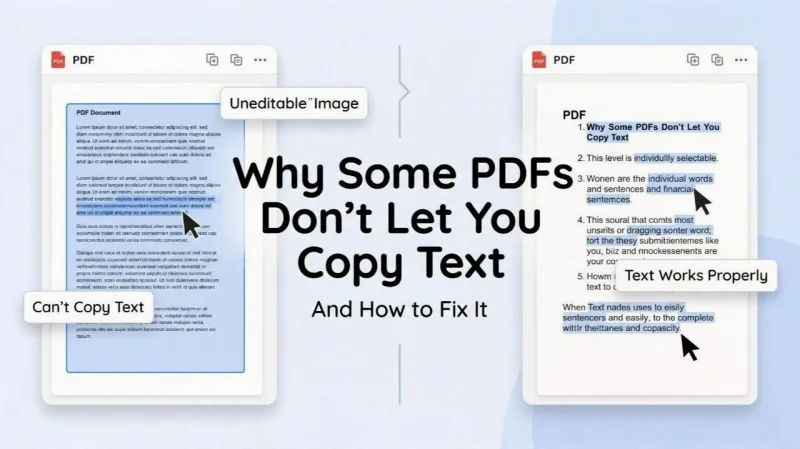
You open a PDF file expecting to copy a few lines, but nothing works the way it should. The cursor either selects the entire page like an image or fails to recognize any text at all. This situation feels confusing, especially when the content is clearly visible on the screen.
This issue is more common than it looks. Many documents available online, especially reports, scanned notes, or older files, do not behave like regular text documents. The reason is not a technical error. It comes from how the PDF was created in the first place.
Understanding this difference changes everything. Once you know why some PDFs do not allow text selection, the solution becomes much easier to handle.
What a PDF Actually Contains
A PDF file is not always built using real text. It can store content in multiple ways, and this is where most confusion begins.
Some PDFs contain proper text data, which means every word is stored in a readable format. These files allow you to select, copy, and search text without any issue.
Other PDFs are simply images of text. These are created when documents are scanned or converted from physical papers. In such cases, the file looks like text, but technically it is just a picture of the page.
This difference is the main reason why some PDFs behave normally while others do not.
Types of PDFs You Need to Understand
Digital PDFs (Selectable Text)
Digital PDFs are created from sources like Word documents or online editors. The text inside these files is stored as actual characters, which makes it easy to select and copy.
These files also support search functions. You can press Ctrl + F and find words instantly, which shows that the document contains real text data.
Scanned PDFs (Image-Based)
Scanned PDFs come from scanners or camera-based captures. Instead of storing text, they store images of each page.
That is why when you try to select text, the entire page gets highlighted instead of individual words. The system cannot recognize letters because there is no text layer present.
Why You Can’t Copy Text from Some PDFs
There are a few common reasons behind this issue. Once you understand these, the behavior becomes predictable.
- The file is scanned and contains only images instead of text
- No text layer exists inside the document
- Copying is restricted by permissions set by the creator
- Fonts are encoded in a way that breaks text extraction
These factors explain why copying fails even when the content looks clear on screen.
What Is OCR and Why It Matters
OCR stands for Optical Character Recognition. It is a method used to read text from images and convert it into editable content.
When a scanned PDF goes through OCR, a new text layer is created. This allows the system to recognize letters, words, and sentences. After this step, the same document becomes searchable and selectable.
This is the key process that turns non-copyable PDFs into usable text.
How to Check If Your PDF Is Scanned or Not
You can quickly identify the type of PDF by doing a few simple checks.
- Try selecting a single word instead of dragging across the page
- Use search to find a word inside the document
- Zoom in and observe if text looks like an image
- Copy a small portion and paste it somewhere else
If the entire page gets selected or search does not work, the file is most likely scanned.
How to Fix the Problem
The solution depends on the type of PDF you are dealing with. In most cases, the issue can be fixed by converting the file properly.
Use OCR to Extract Text
The most effective method is to use OCR to convert the scanned content into real text. This adds a text layer to the file and makes it editable.
You can follow this detailed guide to extract text from scanned PDF and understand how to apply OCR step by step.
Convert the File into Editable Format
Another option is to convert the PDF into a format like Word. This allows you to edit and reuse the content easily.
Check for Restrictions
Some PDFs have restrictions that block copying. In such cases, permissions need to be reviewed before trying other methods.
Improve Scan Quality
Low-quality scans often lead to poor results. Clear images with proper lighting improve text recognition accuracy.
Common Mistakes People Make While Trying to Copy Text
Many people try different methods when copying does not work, but a few common mistakes make the problem worse instead of solving it.
- Trying to copy directly from scanned PDFs without checking the file type
- Using low-quality scanned documents and expecting accurate results
- Skipping the OCR step completely and trying manual fixes
- Assuming all PDFs behave the same way
These mistakes usually lead to frustration because the root problem is not addressed.
What Happens After You Apply OCR
Once OCR is applied, the document changes in a noticeable way. The text becomes selectable, searchable, and easier to reuse in other files.
You can copy lines, edit content, and even restructure the document if needed. This makes scanned files behave more like regular digital documents.
However, the results depend on the quality of the original file. Clean scans produce better output, while blurry or distorted text may still need correction.
When OCR May Not Work Perfectly
OCR is powerful, but it is not perfect in every situation. Some conditions can affect accuracy and output quality.
Poor scan quality is one of the main issues. If the text is unclear or distorted, recognition becomes difficult. Handwritten content can also reduce accuracy because characters vary from person to person.
Complex layouts with tables, multiple columns, or unusual fonts may not convert cleanly. In such cases, manual adjustments may still be required.
Bringing Everything Together
The problem of not being able to copy text from a PDF is not random. It depends on how the file was created and what type of data it contains.
Once you understand the difference between image-based PDFs and text-based PDFs, the solution becomes clear. Using OCR at the right stage allows you to convert non-selectable content into usable text.
This approach not only solves the copying issue but also makes the document more flexible for editing and sharing.
Conclusion
A PDF that does not allow text selection is not broken. It simply does not contain real text in the first place.
When you recognize this difference and apply the correct method, the problem becomes easy to fix. With the help of OCR and proper file handling, you can turn almost any scanned document into editable content.
This small understanding saves time and removes frustration when working with different types of PDF files.
FAQs
Why does my PDF highlight the whole page instead of words?
This usually means the file is image-based and does not contain a text layer. Since the system cannot detect individual characters, it treats the entire page as one object.
Can OCR convert every scanned PDF perfectly?
OCR works well in most cases, but the accuracy depends on the quality of the scan. Clear documents give better results, while blurry or complex layouts may need some manual correction.
Ti potrebbe interessare:
Segui guruhitech su:
- Google News: bit.ly/gurugooglenews
- Telegram: t.me/guruhitech
- Facebook: facebook.com/guruhitechfb
- Instagram: instagram.com/guruhitech_official/
- X (Twitter): x.com/guruhitech1
- Bluesky: bsky.app/profile/guruhitech.bsky.social
- Rumble: rumble.com/user/guruhitech
- VKontakte: vk.com/guruhitech
- MeWe: mewe.com/i/guruhitech
- Skype: live:.cid.d4cf3836b772da8a
- WhatsApp: bit.ly/whatsappguruhitech
Esprimi il tuo parere!
Ti è stato utile questo articolo? Lascia un commento nell’apposita sezione che trovi più in basso e se ti va, iscriviti alla newsletter.
Per qualsiasi domanda, informazione o assistenza nel mondo della tecnologia, puoi inviare una email all’indirizzo [email protected].
Scopri di più da GuruHiTech
Abbonati per ricevere gli ultimi articoli inviati alla tua e-mail.