
Can’t Recover Data from iCloud Backup? 7 Fixes That Actually Work
Introduction
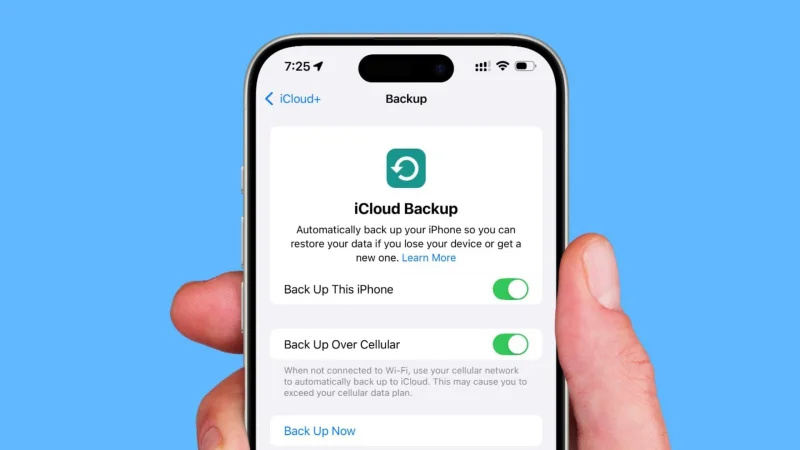
Recovering data from an iCloud backup can be a real test of your patience — when the restore process gets stuck, or the restore option is greyed out. A lot of people think that Apple’s backup system is perfect; however, iCloud restore issues happen quite often.
These problems may arise due to unstable internet, insufficient storage space, running an outdated iOS or corrupt backup files. Fortunately, most of them are quite fixable. Below are 7 tested remedies that deliver results, we have ordered them from the easiest to the most effective recovery techniques.
Why iCloud restore fails
iCloud restore may be interrupted due to several factors, even simple ones. A few examples of such reasons are weak Wi-Fi signal, lack of storage at your end, use of the wrong Apple ID, or an iPhone with a different iOS version than the being backup one.
On the flip side, sometimes it is Apple that has the problem, for example, through temporary issues with the iCloud servers.
7 Working Fixes for Recovering Data from iCloud Backup
Fix 1 — Check your Wi-Fi connection and iCloud server status
Check whether you have a reliable Internet connection. Restoring iCloud will need a strong Wi-Fi signal. Check the System Status page of Apple to see whether iCloud is down or not.
Fix 2 — Make sure you’re signed in to the correct Apple ID
Each iCloud backup corresponds to one unique Apple ID only. When you switch to another account, the backup won’t be visible or restored correctly.
How to do it:
Step 1. Open Settings and then tap your name
Step 2. See which Apple ID email is displayed
Step 3. In case it’s wrong, log out and then log in with the correct Apple ID
Fix 3 — Free up iCloud storage before restoring
If your iCloud storage is full, the restore might fail or stop in the middle. You will need enough space to download all backup data properly.
Step 1. Open Settings > Apple ID > iCloud
Step 2. Look how much space you have free
Step 3. Remove stale backups or unused data, or buy a bigger storage plan
Fix 4 — Update iOS before attempting the restore
If your iOS version is not updated to the latest one, then it can be a reason iCloud restore stops as older system versions may not be able to work with newer backups. Besides, updating your device opens a lot of compatibility options and system bug fixes in the background that can prevent the restore process from working.
Step 1. Open Settings > General > Software Update
Step 2. Get the latest iOS update and install it
Step 3. Once the update is completed, restart your iPhone. Use the iCloud backup restore feature as usual
Fix 5 — Reset network settings and disable VPN or firewall
VPNs, proxies, or firewall rules could be the reason why iCloud data restoration is blocked. You can simply reset network settings in order to remove any wrong configurations and restore the normal connection to iCloud.
Step 1. Head over to Settings > General > Transfer or Reset iPhone. Click Reset → Reset Network Settings
Step 2. Provide your passcode and finalize the reset
Step 3. Disable any running VPN before attempting another restore
Fix 6 — Restore selectively via iCloud.com
If restoring your whole device from backup is not successful, you are still able to get your most valuable data from iCloud directly using this method. By doing so, you will have access to the most important files to you like contacts, photos, and notes without the necessity of resetting your iPhone.
Step 1. Visit iCloud.com and log in using your Apple ID.
Step 2. Click to open the section you need (Contacts, Photos, Notes, etc.)
Step 3. In case you want photos, go to Photos → choose the items you want → press Download button.
Fix 7 — Use Dr.Fone – Data Recovery (iOS) for deep iCloud recovery
If your iCloud restore is a complete failure, Dr.Fone Data Recovery (iOS) can perform a deeper scan and still recover your data. It is a more powerful alternative to an entire iPhone restore because it will scan your iCloud backups without the need for a reset. You can even choose the individual files to recover and bypass the device reset.
Key features:
- iCloud backup recovery without resetting — Recover data directly from iCloud without erasing your iPhone
- Selective recovery — Choose only specific files like photos, messages, contacts, WhatsApp, and notes
- Free scan and preview — view recoverable data before restoring anything
- Multi-source recovery — supports iCloud backup, iCloud sync/Drive, iTunes, and device storage
- Read-only scanning — does not modify or overwrite existing iPhone data
- Cross-data support — recovers photos, videos, messages, call history, and app data
- Works on latest iOS versions — supports modern iPhone, iPad, and iPod Touch devices
Recover Data from iCloud Backup Without Resetting
Step 1. Launch Wondershare Dr.Fone on your PC. Click on the Toolbox in the left panel and then select Data Recovery. Choose iOS Data Recovery.
Step 2. Now pick up Recover Data from iCloud Backup.
Step 3. After you have signed up successfully, give Wondershare Dr.Fone some time to load the iCloud backups from your account. When you see them, select the backup you want and then tap Download.
Step 6. Once the download is completed, Wondershare Dr.Fone presents the backup file contents.
Step 7. Pick the files you want to recover. Click Recover to Computer button to save them without having to reset your iPhone.
Quick Comparison: When To Use Which Fix
| Problem | Recommended Fix |
| iCloud restore is stuck or not moving | Check Wi-Fi and iCloud server status |
| Storage error or “not enough space” message | Free up iCloud storage |
| Wrong Apple ID or no backup showing | Sign in with correct Apple ID |
| Some data types are missing after restore | Restore selected data via iCloud.com |
| Full restore fails or keeps stopping. | Reset network settings & disable VPN. |
Conclusion
iCloud restore issues may seem very frustrating to you, but in most cases, they originate from very simple problems, such as a weak internet connection, storage limits, or an Apple ID mismatch. Once you locate the reason, a good fix is very likely to work fast.
If nothing helps, powerful recovery software such as Dr.Fone Data Recovery (iOS) will enable you to go beyond the limits of the standard iCloud restore. With this tool, you can scan iCloud backups, look at the files which can be recovered, and get back only what you want without having to reset your iPhone. This is why it is an excellent solution when your data is stuck, missing, or not restoring correctly.
Scopri di più da GuruHiTech
Abbonati per ricevere gli ultimi articoli inviati alla tua e-mail.