

How to Download Netflix Movies Without Losing Quality
Netflix downloads may seem as simple as choosing High quality and hitting Download. But preserving video quality involves more than resolution. Bitrate, audio tracks, and output format, can all affect the final result.
So, how can you download Netflix movies without unnecessary quality loss? This guide explains how Netflix download quality works, how to choose the right settings, and how to get the highest possible quality for Netflix downloads on your phone, desktop, and other devices.
What Netflix’s Download Quality Settings Actually Control
In the Netflix app settings, you will find two download quality options:
Standard: Around 480p. Downloads faster and takes up less storage.
High: Up to 1080p, depending on the title and device.
Important: High quality does not guarantee 1080p. If a title is only available in lower quality, the download cannot add detail that is not in the source. Your device also needs to support HD playback. On Android, you can check this under My Netflix → Menu → App Settings → Playback Specification. Widevine L1 supports HD, while L3 limits playback to SD.
Can You Download Netflix Movies in 4K?
No. Netflix offline downloads are currently capped at Full HD (1080p). While some Netflix titles are available to stream in 4K on supported devices and plans, 4K is not available as an offline download.
How to Download Netflix Movies Without Losing Quality
Method 1: Change the Download Quality in the Netflix App
Start with what you already pay for. On Android, iPhone or iPad the setting sits a few taps down:
- Open the Netflix app and tap My Netflix.
- Tap the menu icon, then App Settings.
- Under Downloads, tap Download Video Quality.
- Select High — then re-download anything you saved on Standard, because changing the setting does not upgrade files already on the device.
The Limits of Netflix Download Quality
Netflix offers convenient downloads, but they come with significant limitations regarding quality and file management:
- If a title isn’t available in HD, adjusting the download settings won’t improve the quality.
- Audio options are fixed. You receive the audio track chosen by the app, with no ability to select a separate 5.1 mix.
- Compatibility issues exist. Netflix downloads cannot be viewed on larger screens like laptops or TVs.
If that doesn’t bother you, Method 1 is sufficient. However, if you want better video quality, more audio track options, or files that you can play anywhere, you should use a dedicated Netflix video downloader.
Method 2: Download the Stream with a Desktop Tool
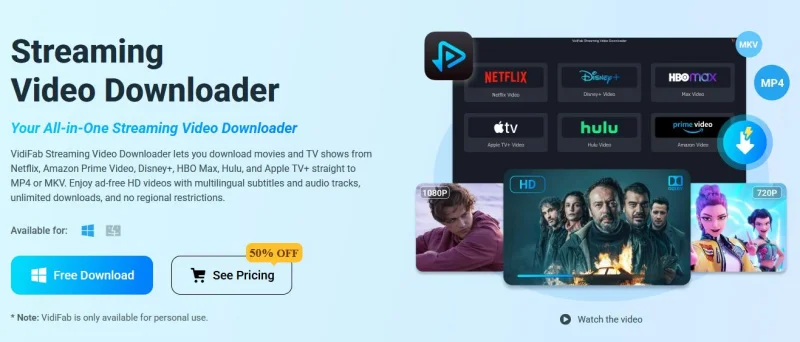
VidiFab Streaming Video Downloader lets you download videos from Netflix, Amazon Prime Video, Disney+, HBO Max, Hulu, Apple TV+, and other supported streaming services.
Unlike the Netflix app, VidiFab gives you more control over the output. You can choose the available video quality, video codec, audio channels, and audio quality based on your needs. It can preserve video at up to 1080p when that quality is available from the source.
Most importantly, VidiFab saves the downloaded video as a regular MP4 or MKV file. This gives you more flexibility to store, organize, and play your videos with media players such as VLC and other compatible players, without being limited to the Netflix app.
Step 1. Set Up Your Download Preferences
Launch VidiFab Streaming Video Downloader and open Preferences. Here, you can set your preferred output options before starting the download:
- Video Format: MP4 or MKV
- Video Codec: H.264 or AV1
- Video Quality: Low, Medium, or High
- Audio Channel: Stereo (AAC) or Surround 5.1 (DD+)
- Output Directory: Choose the folder where you want to save your downloads
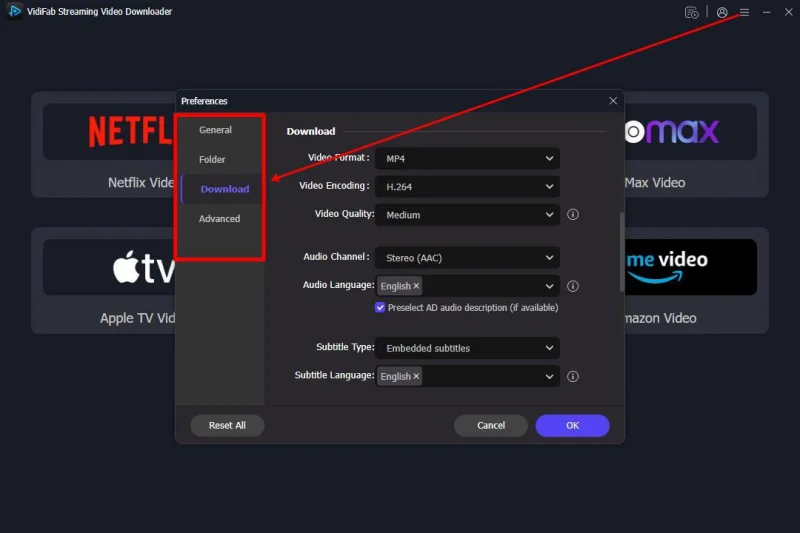
You can also set your preferred subtitle type and language later. Once you finish, click OK to save the settings. Go back to the home interface, select Netflix, and log in to your account.
Step 2. Find the Title
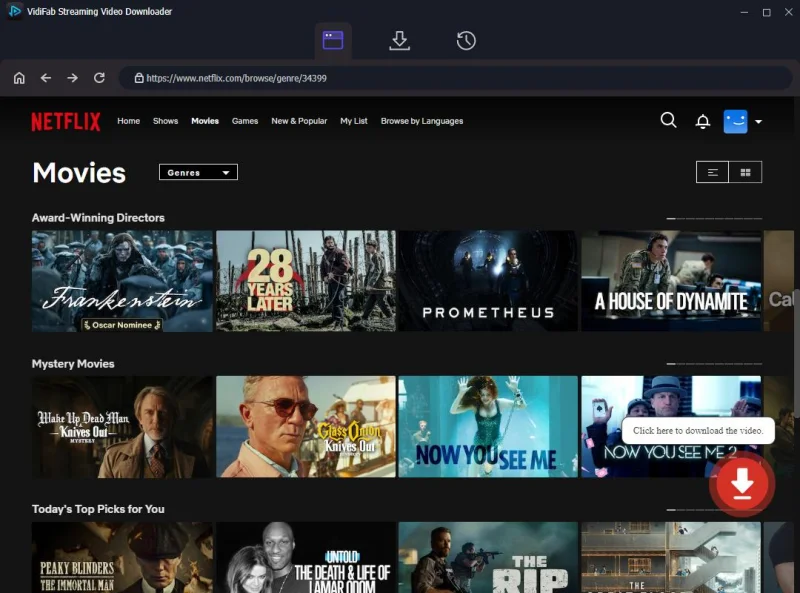
Browse the catalogue inside the tool or paste the movie’s URL into the search bar. Open the detail page for the film or series. Click the download button in the bottom right corner.
Step 3. Choose the Settings That Actually Matter
Choose 1080p if it’s an option, then look at the audio settings. If possible, select Surround 5.1 (DD+) or a better audio track instead of stereo. Also, check the audio bitrate, like 192 kbps, before downloading. For subtitles, pick your preferred language and decide whether to save them as separate SRT files or embed them in the video.
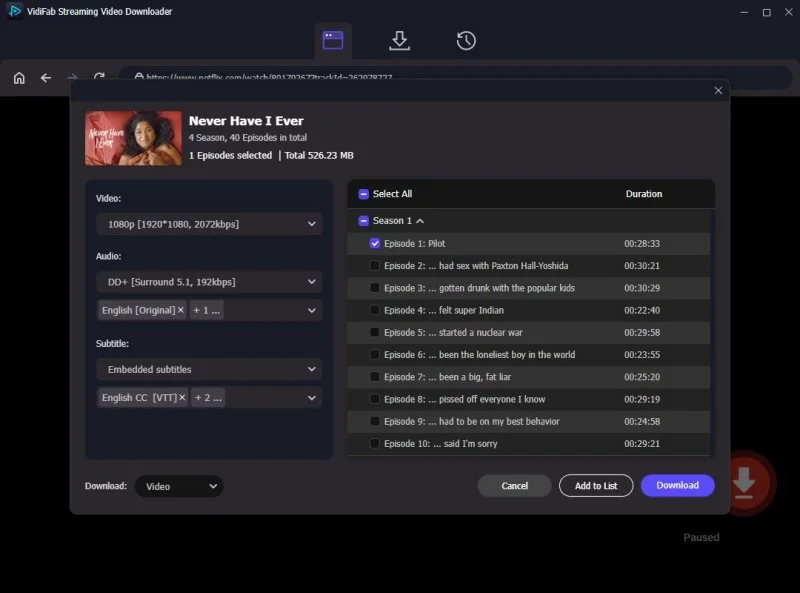
Step 4. Download and Locate the File
Click Download to begin. Once the download is complete, go to the History tab and click the folder icon to find the file. Your video is now saved as a standard MP4 or MKV file, which can be opened with VLC or another compatible media player.
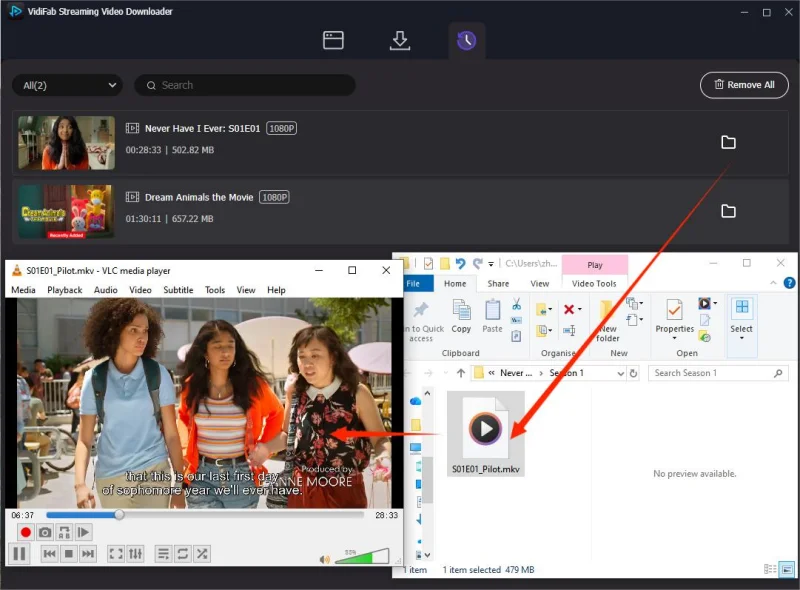
Official app vs. desktop downloader: what ends up on your disk
| Netflix app (High) | VidiFab downloader | |
| Max resolution | Up to 1080p (SD on L3 devices) | Up to 1080p |
| Audio | Single track, chosen by the app | Keep 5.1 / Atmos with MKV |
| Where it plays | Only the device that downloaded it | Any player, any device |
| Expiry | 7–30 days; 48 hours once started | None |
| If you cancel | Every download stops working | Files stay playable |
| Portable file | No — encrypted and app-locked | Yes — standard MP4 or MKV |
If the sound matters as much as the picture — and on a decent setup it usually does — it is worth learning how to download Netflix in MKV format, because MKV is the container that keeps the full multi-channel mix rather than collapsing it to stereo.
How Much Space Do High-Quality Netflix Downloads Need?
Higher-quality Netflix downloads need more storage, especially when you choose 1080p video and surround sound. The exact file size varies by title, bitrate, audio tracks, and subtitles, but these figures give you a useful estimate:
| Quality | Approx. bitrate | 30-min episode | 2-hour movie |
| Standard (480p) | ~0.7 Mbps | ~150 MB | ~0.6 GB |
| High (720p) | ~1.5–2 Mbps | ~400 MB | ~1.6 GB |
| High (1080p) | ~3 Mbps | ~0.7 GB | ~2.7 GB |
These are ballpark figures, not fixed file sizes. Two downloads of the same title can take up different amounts of space because their bitrate and audio tracks may differ.
Audio also adds to the final file size. For example, a 5.1 audio track at 640 kbps can add roughly 290 MB per hour.
If you plan to build an offline library, make sure you have enough free space. A 64 GB drive can hold several 1080p movies, while a full season with high-quality video and 5.1 audio can easily take up more than 15 GB.
FAQs About Downloading Netflix Movies in High Quality
Why does my 1080p download still look soft?
Three usual suspects: the device reported Widevine L3 and quietly received an SD stream, the title’s master isn’t HD, or the player is upscaling a lower-resolution file. Check the playback specification first, then the file’s actual resolution rather than the label on the download.
Can any downloader get 4K from Netflix?
No. UHD decryption keys stay bound to the hardware’s trusted execution environment, so offline files are capped at Full HD for official and third-party tools alike. Treat claims of 4K downloads accordingly.
Is MKV actually better quality than MP4?
The video stream is identical if it came from the same source — the container doesn’t change the picture. What changes is everything around it: MKV holds multiple audio tracks and higher-bitrate surround formats, so you keep the original mix instead of a stereo downmix.
Do downloaded files degrade over time?
The file itself doesn’t degrade. Official app downloads do expire and stop playing after their licence window; files you’ve saved as standard MP4 or MKV stay playable indefinitely. Keep a backup and the master copy untouched.
Conclusion
Downloading Netflix movies without losing quality is about preserving the best quality available from the source. Choose the highest available resolution and audio quality, use a stream-based downloader instead of a screen recorder, and avoid unnecessary re-encoding. Save your videos as MP4 or MKV based on your playback needs.
Ti potrebbe interessare:
Segui guruhitech su:
- Google News: bit.ly/gurugooglenews
- Telegram: t.me/guruhitech
- Facebook: facebook.com/guruhitechfb
- Instagram: instagram.com/guruhitech_official/
- X (Twitter): x.com/guruhitech1
- Bluesky: bsky.app/profile/guruhitech.bsky.social
- Rumble: rumble.com/user/guruhitech
- VKontakte: vk.com/guruhitech
- MeWe: mewe.com/i/guruhitech
- Skype: live:.cid.d4cf3836b772da8a
- WhatsApp: bit.ly/whatsappguruhitech
Esprimi il tuo parere!
Ti è stato utile questo articolo? Lascia un commento nell’apposita sezione che trovi più in basso e se ti va, iscriviti alla newsletter.
Per qualsiasi domanda, informazione o assistenza nel mondo della tecnologia, puoi inviare una email all’indirizzo [email protected].
Scopri di più da GuruHiTech
Abbonati per ricevere gli ultimi articoli inviati alla tua e-mail.