
Seedance 2.5 Review: Everything You Need to Know About the Generator
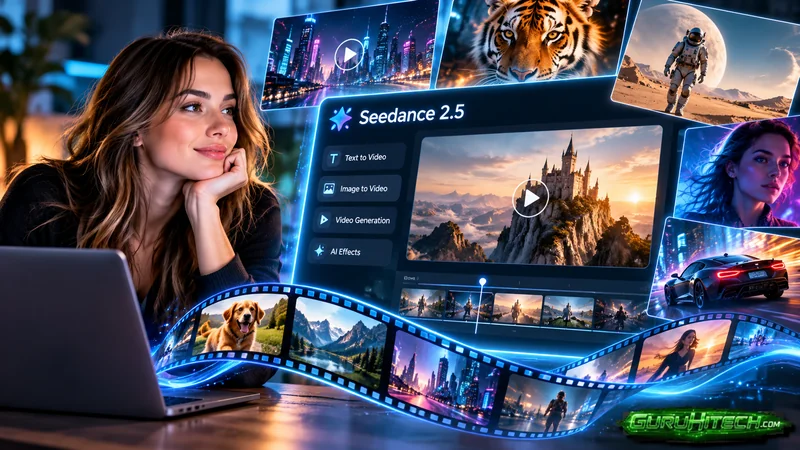
AI video tools can turn a written idea or still image into a moving scene. They can help with early story ideas, social posts, product concepts and film planning. Seedance 2.5 is a video generation model from ByteDance. It is designed to create video with sound, use image, video and audio references, and support longer scenes than many short clip tools. This review explains what Seedance 2.5 can do, how to get better results, where it may fall short, and what to check before using it for work. It is based on published product details, not independent lab testing.
Key takeaways
- Seedance 2.5 is ByteDance’s audio and video generation model.
- Its published features include text, image, video and audio references, scene extension and editing tools.
- ByteDance says one generation can create a clip up to 30 seconds long.
- Prompt detail helps, but the output still needs a careful human review.
- The linked SeaDance AI site says it is independent from the model provider and lists a credit cost, so check its terms before use.
- Research benchmarks show that video tools can still have trouble keeping actions and scene details consistent over time.
What is Seedance 2.5?
Seedance 2.5 is an AI video generator that can create video from written prompts and reference materials. ByteDance describes it as an audio and video generation model that can make clips up to 30 seconds long in one generation. It also supports extending a clip in further rounds.
The model is built for more than making a single moving image. Its feature set focuses on story progression, scene changes, reference control and editing. A creator can start with a prompt, use reference images or clips to guide the result, then extend or adjust the generated scene.
A useful way to think about it is as a visual drafting tool. It can help turn an idea into a video concept, but users still need to review the result, make creative decisions and correct errors.
What can Seedance 2.5 do?
Generate video from text
With text-to-video, a user writes a description and the model creates a clip based on it. The prompt can explain the subject, setting, action, camera movement, lighting and mood.
For example, a prompt might ask for a cyclist riding along a quiet coastal road at sunrise, with the camera following from behind. A more detailed prompt could add the colour of the bicycle, the direction of travel and the movement of the camera.
Text prompts give the model a starting point, but they do not always control every detail. The result may differ from the writer’s exact idea, especially when a prompt includes many actions or changes.
Animate a still image
With image-to-video, a user provides an image and asks the model to add movement. This can help turn a product photo, character drawing or location image into a short video.
A good prompt says what should move and what should stay still. For example, a creator might ask for the camera to move slowly toward a product while the background remains unchanged. Clear instructions can reduce unwanted movement.
Use video and audio references
ByteDance says Seedance 2.5 can work with reference images, video clips and audio clips. References can guide the appearance of a character, the movement in a scene, the visual style or the sound. The company says one generation can use up to 30 images, 10 video clips and 10 audio clips as references. These are the model provider’s stated limits and may vary by the platform through which a user accesses the model.
Reference controls can help when a creator needs the same character or setting to appear in several shots. They do not guarantee perfect matching. It is still important to check faces, clothing, objects, background details and sound after each generation.
Extend a scene
Seedance 2.5 can extend a generated clip through additional rounds. This can help a creator continue a scene without starting from a blank prompt each time. For example, a short clip could show a person entering a room, then an extension could continue with the person walking to a window.
ByteDance says the model can create clips up to 30 seconds in one generation and extend them further. The company also presents a staged performance example that moves from a dressing room, through a backstage corridor, and onto a concert stage. This is a product demonstration from the model provider, not an independent quality test.
Make targeted edits
The model provider also describes editing features for changing parts of a video, including green screen work, camera perspective and reference-based editing. These tools may help creators adjust a shot without remaking the entire video.
Editing results depend on the request and the source material. A small change, such as replacing a background, may be easier to manage than changing several people, objects and actions at once. Review each edit carefully to check that details outside the requested change have not shifted.
Seedance 2.5 access and the linked platform
The page linked for this article offers access to Seedance 2.5 through the SeaDance AI website. It lists text, image and reference inputs, audio generation, 480p, 720p and 1080p resolution options, and output durations starting at four seconds. The page also shows a rate of 30 credits per second. It states that SeaDance AI is an independent platform and is not affiliated with or endorsed by the model provider.
If you are looking for seedance 2.5 free, check the current account terms and credit rules before starting. A page title or promotion may mention free access, while individual settings or longer outputs may still use credits. Check the final cost shown before generating, especially if you plan to create several versions.
The linked platform is one access route. ByteDance’s own launch announcement names its other services and says API access was coming soon at the time of the announcement. Availability can change, so check the current product page for the latest access options.
How to write a useful prompt
A strong prompt gives the model a clear task without piling on conflicting instructions. You can organize it into a few parts:
- Subject: Who or what is in the scene?
- Action: What happens?
- Setting: Where does it happen?
- Camera: How does the camera move or frame the subject?
- Look: What lighting, colour or visual style do you want?
- Sound: Should there be speech, music or background sound?
- Limits: What should remain unchanged or stay out of the scene?
For example:
A golden retriever runs across a wide, grassy park in the early morning. The camera tracks beside the dog at a steady pace. Soft sunlight comes from the left. Keep the dog in frame, with trees in the distance. Add light birdsong and no spoken dialogue.
This gives the model a subject, action, place, camera instruction, lighting and sound direction. If the result is close but not right, change one part of the prompt at a time. That makes it easier to see which instruction affected the output.
A practical workflow for beginners
A simple workflow can help you get more consistent results:
1. Start with one clear idea
Write down what the viewer should see and feel. Keep the first prompt focused on one main action. For a product clip, that might be a bottle turning slowly on a table. For a story scene, it could be a character opening a door.
2. Choose the right input
Use text if you are still exploring the idea, use a reference image if the subject’s look matters, use a reference video if a particular movement or camera path is important.
3. Set the length and shape
Decide whether the video is for a vertical social post, a square feed or a wide screen. Pick a duration that gives the action enough time to read. A short, clear clip may work better than a long clip with several unrelated events.
4. Generate a first version
Treat the first result as a draft. Check whether the subject, action, setting and camera direction match your request. Note any errors before changing the prompt.
5. Make small corrections
If the subject looks right but the camera is wrong, adjust the camera instruction only. If the movement is good but the background changes, strengthen the instruction about keeping the setting consistent.
6. Review sound and visuals together
Audio and video should support the same moment. Listen for unexpected speech, music or sound effects. Check whether the sound starts and stops at the right time.
7. Export only after a final check
Watch the clip from beginning to end. Look for changing faces, extra fingers, shifting clothing, broken text, unnatural movement or sudden jumps between shots. If the clip is for a client or public campaign, get a human review before publishing.
How to judge the result
A video can look polished and still fail to tell the right story. Use a simple checklist to review it.
| What to check | Questions to ask |
| Prompt match | Are the main subject, action and setting present? |
| Continuity | Do people, clothing and objects stay consistent between shots? |
| Motion | Does movement look natural and clear? |
| Camera | Does the camera move as requested? |
| Sound | Does the audio fit the scene and avoid unwanted speech or noise? |
| Text | Are signs, labels and captions readable and spelled correctly? |
| Use case | Is the output suitable for the platform and audience? |
Video generation research shows why these checks matter. A 2025 research project called TC-Bench tested how well video generators handled changes in scenes over time. Across the systems and tasks in that benchmark, the researchers found that models often struggled to follow descriptions of changing relationships and actions. The study does not give a Seedance 2.5 score, but it shows why creators should inspect action, order and continuity in any generated clip.
Strengths of Seedance 2.5
Based on the published feature details, Seedance 2.5 may suit creators who need:
- Clips up to 30 seconds from one generation
- Scene extension for longer story sequences
- Text, image, video and audio references
- Video with generated sound
- Tools for scene editing and visual changes
- A way to test camera movement and story ideas before filming
The ability to use several forms of reference may be helpful for storyboards, campaign drafts and early film planning. Instead of describing every visual detail from scratch, a creator can provide a reference and explain how it should be used.
Limits to keep in mind
Product pages explain what a model is designed to do. They do not prove that every prompt will work well. Quality can vary by prompt, subject, reference material, settings and access platform.
Common issues with AI video tools include:
- A face, hand or object changing between frames
- A character moving in a way that does not match the prompt
- Background details changing between shots
- Generated text appearing misspelled or unreadable
- Sound that does not match the action
- Camera movement that feels uneven
- A scene ending before the story feels complete
Longer videos can be harder to control because more actions must stay in order. If a scene includes several characters, objects and camera changes, consider splitting it into smaller parts and checking each part before extending the sequence.
Who may benefit from Seedance 2.5?
Seedance 2.5 may be useful to:
- Content creators making early versions of social videos
- Marketing teams testing visual ideas before a shoot
- Designers adding motion to still images
- Film teams planning scenes and camera movements
- Small businesses creating draft product visuals
- Teachers and students explaining ideas through short videos
It may be less suitable when a project needs exact product details, precise written text, a real person’s likeness, or a fully controlled final edit. In those cases, a human editor and conventional video tools may still be needed.
Responsible use and rights
Before publishing a generated video, check the platform’s terms, the rights to any reference material, and the rules that apply to your use. Do not upload private images, client files or personal recordings unless you have permission and understand how the service handles them.
Be careful when generating realistic scenes involving real people, public figures or sensitive events. A made-up scene can be mistaken for a real recording if it is shared without explanation. When viewers could misunderstand the source of a video, label it clearly.
For brand or client work, keep records of the prompt, reference files, edits and approvals. This makes it easier to explain how the video was made and what changes were made before it was published.
Frequently asked questions
Is Seedance 2.5 an AI video generator?
Yes. ByteDance describes Seedance 2.5 as an audio and video generation model. It can create clips from prompts and reference materials, and it supports scene extension and editing features.
Can Seedance 2.5 create videos from images?
The product pages describe using images as references and creating video from still images. The exact options can depend on the platform where you access the model.
How long can one Seedance 2.5 generation be?
ByteDance says the model can make videos up to 30 seconds in a single generation. The linked SeaDance AI page also advertises outputs up to 30 seconds, though users should check the available settings and credit cost on that site.
Does Seedance 2.5 create sound?
ByteDance describes Seedance 2.5 as an audio and video model. The linked platform lists native audio as an option. Check the current settings on the service you use, since features may differ between platforms.
Is the linked SeaDance AI platform the official ByteDance site?
The linked page says SeaDance AI is an independent platform and is not affiliated with, endorsed by or sponsored by the underlying model provider. Users should review its terms, credit costs and data policies before uploading files or generating video.
Is Seedance 2.5 free?
The linked page uses the phrase Seedance 2.5 free, but it also lists a charge of 30 credits per second. Check the current account terms, available credits and final cost before generating a video.
Can Seedance 2.5 make a finished professional video by itself?
It can help create and edit video, but users should review the result before using it as a final product. Text, faces, movement, sound and scene continuity may need correction. For paid campaigns, client work or public information, a human review is a sensible final step.
Ti potrebbe interessare:
Segui guruhitech su:
- Google News: bit.ly/gurugooglenews
- Telegram: t.me/guruhitech
- Facebook: facebook.com/guruhitechfb
- Instagram: instagram.com/guruhitech_official/
- X (Twitter): x.com/guruhitech1
- Bluesky: bsky.app/profile/guruhitech.bsky.social
- Rumble: rumble.com/user/guruhitech
- VKontakte: vk.com/guruhitech
- MeWe: mewe.com/i/guruhitech
- Skype: live:.cid.d4cf3836b772da8a
- WhatsApp: bit.ly/whatsappguruhitech
Esprimi il tuo parere!
Ti è stato utile questo articolo? Lascia un commento nell’apposita sezione che trovi più in basso e se ti va, iscriviti alla newsletter.
Per qualsiasi domanda, informazione o assistenza nel mondo della tecnologia, puoi inviare una email all’indirizzo [email protected].
Scopri di più da GuruHiTech
Abbonati per ricevere gli ultimi articoli inviati alla tua e-mail.