

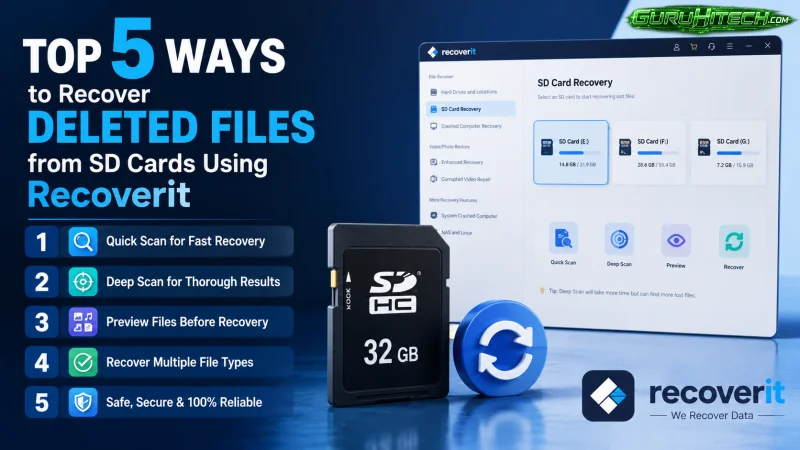
Top 5 Ways to Recover Deleted Files from SD Cards Using Recoverit
SD cards still sit at the center of everyday storage. They hold travel photos, wedding clips, drone footage, phone exports, camera RAW files, and work documents. The problem is simple: one wrong tap, a formatting prompt, file system corruption, or card removal during transfer can wipe out important files in seconds.
If you need to recover deleted files from SD cards, speed matters. The more you keep using the card, the higher the chance that deleted data gets overwritten. In most cases, recovery is still possible if you stop writing new files and use the right recovery workflow.
This guide covers five practical ways to recover deleted files from SD cards, plus what usually causes SD card data loss and how to improve your success rate.
Why files disappear from SD cards
Before data recovery, it helps to know what usually caused the loss. The most common reasons include accidental deletion, accidental formatting, interrupted transfers, file system corruption, malware, damaged card readers, and sudden device shutdowns. SD cards used in cameras, drones, Android phones, dash cams, and handheld consoles are especially exposed to these risks because they move between devices often.
Recoverit data recovery highlight support for media recovery across memory cards, cameras, drones, and more than 500 loss scenarios. It is built for common consumer recovery cases like deleted photos, lost videos, formatted storage, damaged partitions, and inaccessible drives.
Top 5 ways to recover deleted files from SD cards
1. Stop using the SD card immediately
This is the first and most important move. When files are deleted from an SD card, the storage space is usually marked as available rather than erased instantly. New photos, videos, or copied files can overwrite the deleted data and reduce recovery success.
- Take the card out of the phone, camera, or drone.
- Do not record new media to it.
- Do not format it again.
- Use a stable card reader when connecting it to your computer.
This step sounds basic, but it protects the remaining recoverable data better than anything else.
2. Check hidden files and the recycle path first
Not every “missing” file is truly deleted. In some cases, files are hidden, moved, or not displayed because of system errors. If the SD card was used through a Windows PC, you may also find copies in a recycle path, synced folder, or transfer destination.
- Enable hidden items in File Explorer.
- Search by file extension such as JPG, MP4, MOV, CR3, or DOCX.
- Check your desktop import folder, Downloads, and backup locations.
- Look in cloud sync folders if your phone or camera app was set to auto-upload.
This won’t solve true deletion, but it can save time before running a deep scan.
3. Use Recoverit to scan the SD card
For actual deletion or formatting loss, a dedicated recovery tool is the most direct option. Recoverit Photo and Video Recovery is designed for memory cards and supports recovery of photos, videos, and audio files from SD, CF, SmartMedia, and other card types.
Why this is a strong fit for SD card recovery:
- Supports deleted and formatted media recovery
- Works with cameras, drones, Android storage exports, and external readers
- Handles common image, video, audio, and document formats
- Built for memory-card-based recovery scenarios
- Part of the broader data recovery software for Windows and Mac
How to do it:
- Connect the SD card to your computer with a reliable reader.
- Launch Recoverit and select the SD card location.

- Start the scan and let the software search for deleted files.
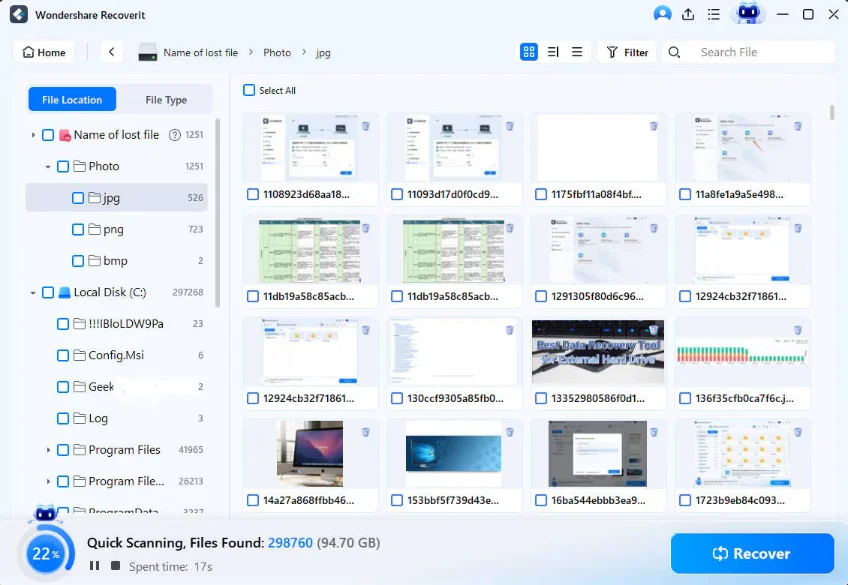
- Preview recoverable items where available.
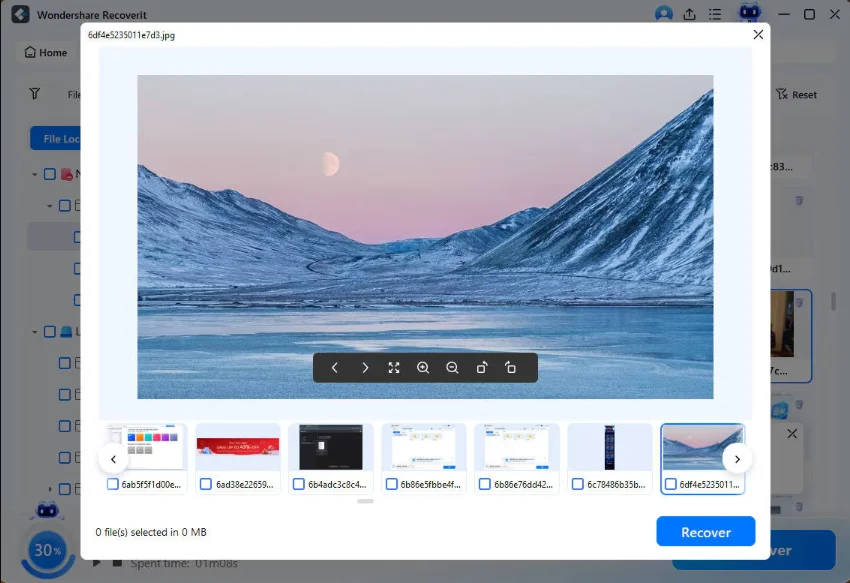
- Recover files to a different drive, not back to the same SD card.
This is the cleanest method when the goal is to restore deleted photos, videos, and documents without manual command work.
4. Try a deep scan for formatted or corrupted SD cards
Quick deletion recovery is one thing. Formatted or corrupted cards are another. If the card was reformatted in a camera, phone, or computer, standard browsing often shows it as empty. That does not always mean the old files are gone beyond recovery.
In these cases, a deep scan is the better route because it looks for file signatures and recoverable fragments across the storage structure. This matters for:
- Cards that show as empty after formatting
- Cards that ask to be formatted before use
- Cards that became unreadable after abrupt removal
- Media cards with damaged file tables
Recoverit is built for these heavier scenarios too, especially where the card holds valuable media such as RAW photos, 4K videos, or project footage.
5. Recover the files to another device and verify them
Recovery is not finished when the scan ends. The final step is restoring files safely and checking whether they open correctly.
- Save recovered files to your PC or an external hard drive
- Do not restore them onto the same SD card during the first pass
- Open important files one by one, especially videos and large image sets
- Create a second backup after recovery if the files matter
If the SD card has shown repeat corruption, replace it. Even a successful recovery does not mean the card is reliable for future storage.
What types of files can usually be recovered?
SD card recovery often focuses on media, but it is not limited to that. Depending on the device and overwrite level, you may recover:
- Photos: JPG, PNG, RAW, CR2, NEF, ARW and more
- Videos: MP4, MOV, AVI, MTS, MKV and similar formats
- Audio: MP3, WAV, AAC and voice recordings
- Documents: PDF, DOCX, XLSX, PPTX and exported reports
- App or project assets transferred through the card
Tips to improve SD card recovery success
- Stop using the card right after deletion
- Avoid writing recovered files back to the same card
- Use a stable reader and direct USB connection
- Run recovery on a desktop or laptop rather than on-phone utilities when possible
- Back up the recovered files immediately
Why Recoverit works well for this topic
For a Recoverit-led external article, the product fit is actually strong here. SD card loss is a real, high-intent use case. The official product pages position Recoverit around photo, video, and audio recovery from memory cards, cameras, drones, and other removable media. That makes the recommendation feel natural instead of forced.
If the article needs one broader contextual link, you can also point readers to the Recoverit data recovery tips section for supporting tutorials and storage advice.
Final thoughts
The best way to recover deleted files from SD cards is to act fast, stop using the card, and use a recovery workflow that matches the loss scenario. For accidental deletion, missing photos, formatted cards, and corrupted memory storage, Recoverit is a natural solution because it is designed for exactly these device and media recovery cases.
If the files matter, do not wait. The longer the SD card stays in use, the lower the chance of getting everything back intact.
Ti potrebbe interessare:
Segui guruhitech su:
- Google News: bit.ly/gurugooglenews
- Telegram: t.me/guruhitech
- Facebook: facebook.com/guruhitechfb
- Instagram: instagram.com/guruhitech_official/
- X (Twitter): x.com/guruhitech1
- Bluesky: bsky.app/profile/guruhitech.bsky.social
- Rumble: rumble.com/user/guruhitech
- VKontakte: vk.com/guruhitech
- MeWe: mewe.com/i/guruhitech
- Skype: live:.cid.d4cf3836b772da8a
- WhatsApp: bit.ly/whatsappguruhitech
Esprimi il tuo parere!
Ti è stato utile questo articolo? Lascia un commento nell’apposita sezione che trovi più in basso e se ti va, iscriviti alla newsletter.
Per qualsiasi domanda, informazione o assistenza nel mondo della tecnologia, puoi inviare una email all’indirizzo [email protected].
Scopri di più da GuruHiTech
Abbonati per ricevere gli ultimi articoli inviati alla tua e-mail.