
A Practical Guide to Arial Narrow Download and Installation

Introduction to Arial Narrow Font
The world of digital typography is vast, but few fonts hold the same level of utility and recognition as Arial Narrow. As a member of the broader Arial family, this specific typeface was designed to solve a very particular problem: how to fit more text into a limited amount of space without sacrificing readability. Whether you are working on a dense spreadsheet, a compact brochure, or a complex technical manual, Arial Narrow provides a sleek and professional solution.
Its history is rooted in the need for a versatile sans serif font that could mimic the proportions of classic narrow faces while maintaining the clean lines and modern feel of the original Arial. Because it is narrower than the standard version, it allows for more characters per line. This makes it an essential tool for designers and office professionals alike who need to maximize their layout efficiency.
Why You Need This Font
Finding a reliable source for an arial narrow download is the first step toward enhancing your typographic toolkit. While many operating systems come with a variety of pre installed fonts, there are times when a specific version or a fresh installation is required.
For instance, if you are migrating to a new computer or if your current font files have become corrupted, knowing how to find and install this typeface correctly is vital. It ensures that your documents maintain their intended formatting across different platforms and devices.
Key Benefits of Using Arial Narrow
- Space Efficiency: It is roughly 20 percent narrower than the standard Arial font, allowing for significant space savings.
- Professional Appearance: It retains the neutral and clean look that makes Arial a global standard for business communication.
- Cross Platform Compatibility: As one of the most common fonts in the world, using it ensures your documents look the same on Windows, Mac, and Linux.
- Readability at Small Sizes: Even when condensed, the letterforms remain distinct, making it perfect for fine print or legal disclaimers.
Step by Step Installation for Windows
Installing a new font on a Windows machine is a straightforward process that only takes a few moments. Once you have acquired your files, follow these simple steps to get started.
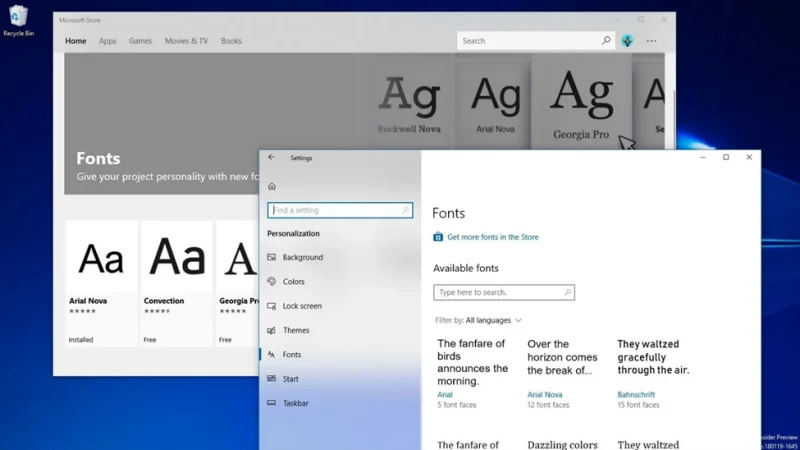
- Locate the Files: Find the folder where you saved your downloaded font files. They will usually have a .ttf or .otf extension.
- Extract the Folder: If the fonts arrived in a zipped folder, right click the folder and select “Extract All” to access the individual files.
- Preview and Install: Double click on the font file to open the Windows Font Viewer. This window shows you how the font looks at different sizes.
- Click Install: At the top of the preview window, click the “Install” button. Windows will automatically move the file to the correct system folder.
Alternatively, you can drag and drop the font files directly into the Fonts folder located in your Control Panel. Once the progress bar disappears, the font is ready to use in programs like Microsoft Word, Excel, and Adobe Creative Cloud.
Step by Step Installation for macOS
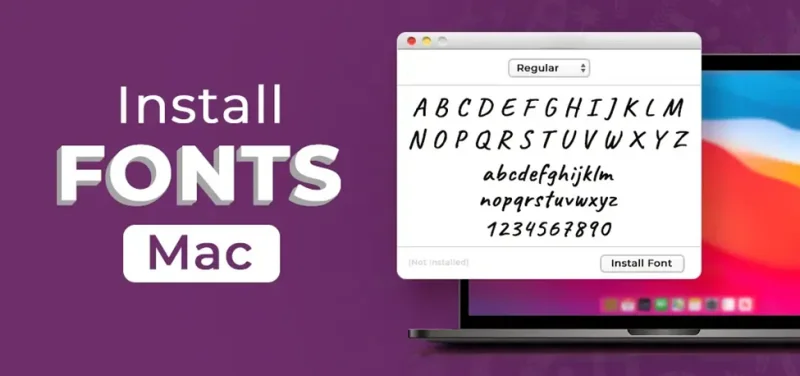
Mac users have an equally simple path to adding new typography to their systems. Apple uses an application called Font Book to manage all installed typefaces.
- Open Font Book: You can find this app in your Applications folder or by searching via Spotlight.
- Add New Fonts: Click the “Plus” icon at the top of the Font Book window.
- Select Your Files: Navigate to the location of your Arial Narrow files and select them.
- Validate: Mac will often check the file for errors before finalizing the installation. Once validated, the font will be available for all users on the machine.
Troubleshooting Common Issues
Sometimes, things do not go exactly as planned. If you have followed the steps above but still cannot see your new font in your favorite application, consider these common fixes:
Restart Your Applications
Most software programs scan for new fonts only when they are first opened. If you installed Arial Narrow while Microsoft Word was already running, you will likely need to close the program and reopen it before the font appears in your dropdown menu.
Check for Duplicates
If you already have a version of Arial Narrow installed, your system might get confused between the old and new files. Use your font management software to check for duplicate entries and remove any versions that are outdated or showing errors.
Verify File Integrity
If the installation fails or the font looks “broken,” the file itself might be corrupted. Try downloading the package again from a different source to ensure you have a clean and functional file.
Best Practices for Using Narrow Fonts
Once you have successfully completed your installation, it is important to use the font effectively. Because narrow fonts are condensed, they can sometimes look crowded if not handled with care.
- Adjust Tracking: If the text feels too tight, you can slightly increase the letter spacing (tracking) in design programs like InDesign or Photoshop to improve legibility.
- Pairing: Arial Narrow pairs excellently with its standard width counterpart. Use the regular Arial for headings and the narrow version for data heavy tables to create a balanced look.
- Avoid Overuse: While it is great for saving space, avoid using it for long form body text like a novel. The condensed nature can be tiring for the eyes over many pages.
Summary
The journey from needing more space to having a fully functional typeface involves a few key steps. By finding a quality source, following the specific installation paths for your operating system, and troubleshooting any minor hiccups, you can significantly improve your document design capabilities. Arial Narrow remains a staple for a reason: it is practical, reliable, and professional.
Scopri di più da GuruHiTech
Abbonati per ricevere gli ultimi articoli inviati alla tua e-mail.