
Beginner Friendly Guide to Playing Cookie Run Kingdom on PC
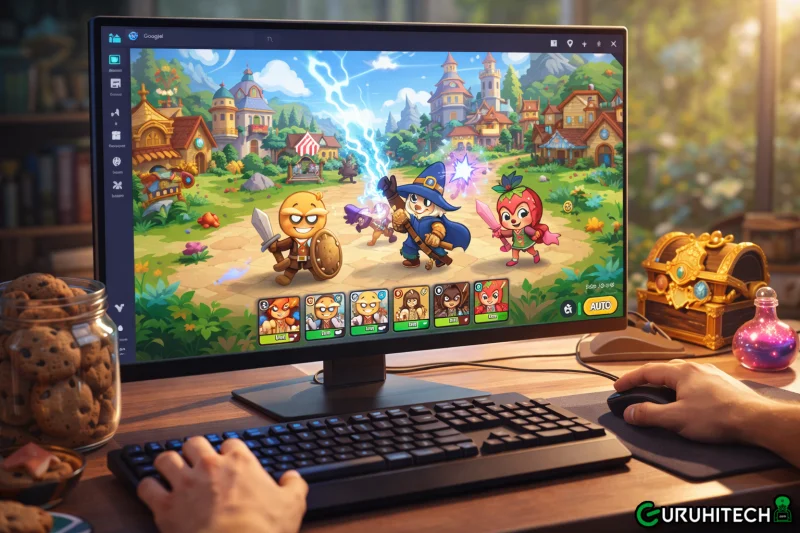
Playing mobile games on a PC can really transform your gameplay experience. The advantages of a bigger display, accurate mouse controls, and smooth performance make it easier and more fun to play for a long time. If you are a fan of building kingdoms and strategic battles games, switching your play to a computer will allow you to enjoy the details of every cookie and animation at a higher resolution. This manual thoroughly explains the technical installation from beginning to end, so beginners can also do it independently without any problem.
The game is not officially released for PC by the developer. To play it on your computer, you have to use an Android emulator. An emulator is a software that simulates an Android device on your PC or Mac so that apps from Google Play Store can be used as if they were on your phone. A lot of players who want to play cookie run kingdom pc seek ways to do it because they desire the visually richer experience and the easier controls that bigger screens and keyboards can offer.
What Is an Android Emulator
An Android emulator creates a virtual mobile device for your PC by utilizing your system’s CPU, RAM, and graphics hardware. The games that are installed inside the emulator will perform just like they do on a real Android device but with the advantage of full keyboard and mouse support, customizable controls, and higher frame rates. Among the popular emulators are MuMuPlayer, BlueStacks, and LDPlayer, each of which allows running games on desktops seamlessly.
System Requirements Before You Begin
Ensure that your system has these minimum requirements before you install an emulator:
- Windows 10 or later, or macOS 10.13 or newer
- At least 8 GB RAM (4 GB minimum)
- A 4-core processor or better
- At least 10 GB of free disk space
- Updated graphics drivers
- Virtualization (VT) enabled in your BIOS
By turning on virtualization, the emulator is able to use your hardware more effectively, thus less lag and more stability.
Step 1: Enable Virtualization in BIOS
Reboot your computer and enter BIOS settings. The typical key combinations for this are F2, DEL, or ESC. Depending on your computer, you may have to look for options to enable Intel VT-x or SVM Mode if it’s an AMD processor. After that, save and exit the BIOS. As if by magic, this simple step will make your emulator much more responsive.
Step 2: Install an Android Emulator
There are many emulators to choose from, e.g., MuMuPlayer, BlueStacks, or LDPlayer. Get the one you like from the official website. When the installer pops up, do the following:
- Choose a drive with enough space
- Allow all required permissions
- Follow the installation prompts
After installation, running the emulator will give you a virtual Android screen.
Step 3: Sign In to the Google Play Store
Launch Google Play Store from inside the emulator and log in with your Google account. Without this, you won’t be able to download the game. If you want, you can separate your gaming from your main account by using a secondary one.
Step 4: Install Cookie Run: Kingdom
Look out for Play Cookie Run: Kingdom on PC on the Play Store in the emulated environment and download it the usual way. Once it is installed, the icon will show up on the home screen.
Step 5: Optimize Emulator Settings
Before you launch the game, consider setting up performance configurations for a better gaming experience:
- Assign 4 CPU cores if available
- Set at least 4 GB of RAM
- Choose OpenGL or DirectX for graphics rendering
- Enable high FPS mode if supported
These hacks will make the game more responsive to your commands and will help you with the lags that are present during battles or when opening kingdom management.
Step 6: Set Up Keyboard and Mouse Controls
Playing on your PC allows you to use your keyboard and mouse, which is a big plus. If you are using one of the emulators, you will find a key, mapping tool. This allows you to assign keys for taps, menus, and quick actions so that you can play the game as naturally and as fast as you want.
Step 7: Launch and Enjoy
Click on the game icon and open it from the emulator home screen. Let the additional resources get downloaded. Sign in with your current gaming account or create a new one. Change the in-game graphic settings if you want to have smooth images.
Common Troubleshooting Tips
- Lag or stuttering – Increase RAM/CPU allocation or enable virtualization.
- Black screen on game launch – Try switching graphics modes such as OpenGL and DirectX.
- Slow response – Close background apps and make sure your system is not overloaded.
Syncing Your Progress
If you have played the game on mobile, you can sync your progress. Simply link your account to Google, Devplay, or another supported login method, and then sign in with the same account inside the emulator. Your kingdom and cookies will be transferred without any hassle.
Emulator Benefits Beyond Gameplay
Besides playing games, a user-friendly emulator also enables you to do the following:
- Run multiple game instances at the same time
- Manage several accounts simultaneously
- Play and use other apps side by side
- Customize controls for instant actions
Such functionalities allow players to indulge in long sessions and enjoy strategizing even more.
Final Thoughts
After setting everything up, playing Cookie Run: Kingdom on PC turns into a comfortable and natural experience. The bigger screen, keyboard accuracy, and steady performance inject fresh energy to the gaming experience. This kind of setup is suitable for a relaxed gaming session as well as a longer one without any concern for battery draining or device overheating.
FAQs
Is it necessary to have a gaming PC?
No. Even a mid-range device with 8 GB RAM and virtualization enabled will be sufficient.
Will I be able to retain my progress on mobile?
Yes. Simply sign in with the same linked account to sync your kingdom.
Do I need to pay more?
No. Using an emulator and downloading a game from the official store is free.
Is this method safe?
Definitely. You are downloading the game directly from the Play Store through a secure emulator.
Ti potrebbe interessare:
Segui guruhitech su:
- Google News: bit.ly/gurugooglenews
- Telegram: t.me/guruhitech
- Facebook: facebook.com/guruhitechfb
- Instagram: instagram.com/guruhitech_official/
- X (Twitter): x.com/guruhitech1
- Bluesky: bsky.app/profile/guruhitech.bsky.social
- Rumble: rumble.com/user/guruhitech
- VKontakte: vk.com/guruhitech
- MeWe: mewe.com/i/guruhitech
- Skype: live:.cid.d4cf3836b772da8a
- WhatsApp: bit.ly/whatsappguruhitech
Esprimi il tuo parere!
Che ne pensi di questa notizia? Lascia un commento nell’apposita sezione che trovi più in basso e se ti va, iscriviti alla newsletter.
Per qualsiasi domanda, informazione o assistenza nel mondo della tecnologia, puoi inviare una email all’indirizzo [email protected].
Scopri di più da GuruHiTech
Abbonati per ricevere gli ultimi articoli inviati alla tua e-mail.