
How to Change Text on a Picture Without Photoshop (Even From Your Phone)
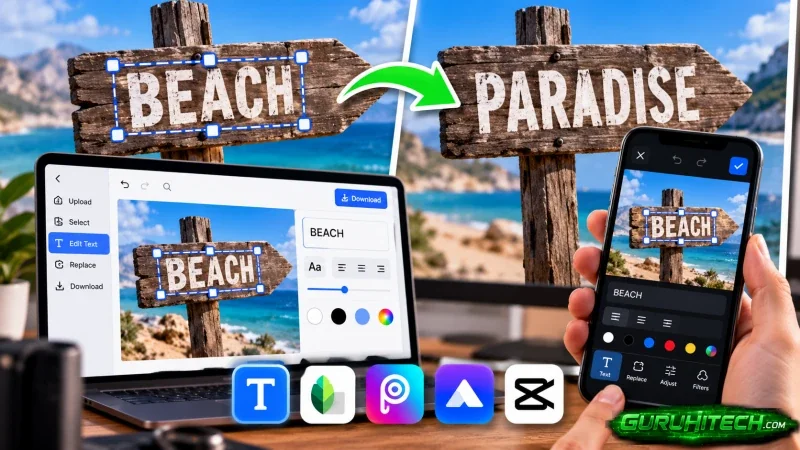
It is always one word. The party invitation went out with the wrong date, the flyer you printed has last year’s phone number, the meme you want to share needs a different caption. Or the image an AI generator made for you looks great, except the sign in the background says “HAPPPY BIRTHDYA.”
Changing the text should take ten seconds. Usually the image is a flattened JPG or a screenshot, there is no original design file, and Photoshop is not installed on your phone. So most people grab a free photo app, draw a box over the old text, type something new on top, and end up with an image that looks obviously edited.
This guide explains why that quick fix looks fake, and how to edit text in image with same font and background, so the new words look like they were always there, straight from a browser on your phone or computer.
Why the Usual Phone Fix Looks Fake
Most free editing apps treat text as a sticker. You can add new words on top of an image, but you cannot change the words that are already part of it. To replace text, you have to hide the old text first, and that is where it falls apart:
- The patch shows. A solid box over a photo, a gradient, or a textured poster stands out immediately. The background behind the text has to be rebuilt, not covered.
- The font doesn’t match. You pick the closest font the app offers, but the weight, spacing, and size are slightly different, and the eye notices.
- The color is off by a shade. Text in photos is rarely pure black or pure white. It picks up lighting, shadows, and compression.
- Angles and perspective get lost. Text on a sign, a mug, or a slanted poster follows the surface. Flat app text doesn’t.
Designers solve this in Photoshop with cloning tools, font identification, and patience. That is too much work for one wrong date, and impossible on a phone.
The Better Way: Let AI Redraw the Words
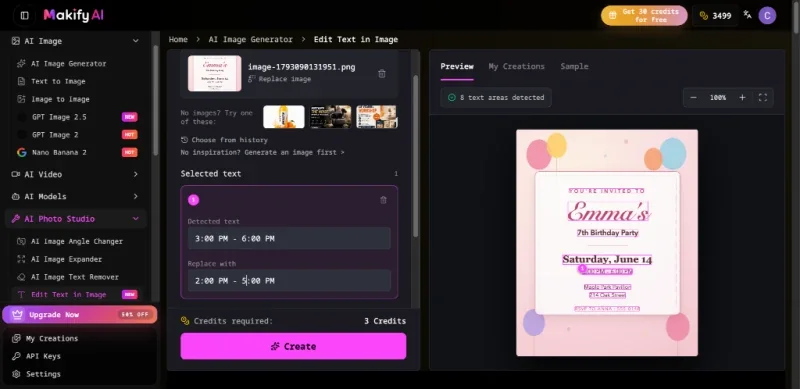
A newer group of tools works differently. Instead of covering the text, they read it and redraw it. This is the approach to use when the new words have to match the old ones: upload the picture, the tool detects the text that is already there, you tell it what each word should say instead, and an AI image model redraws that area while trying to match the surrounding lettering, background, and layout.
The difference is that the new text is part of the image, not floating on top of it. Here is how the process typically works.
Step 1: Upload the image you already have
A JPG, PNG, or WebP is enough: a photo of a flyer, a screenshot, a downloaded meme, or an AI-generated image. You don’t need a layered PSD, a Canva project, or the original font files. Browser-based tools such as the Makify AI photo editor also work in a mobile browser, so you can upload directly from your phone’s gallery.
Step 2: Click the text you want to change
The tool runs text recognition (OCR) on the image and draws boxes around each piece of text it finds, including rotated and vertical text. Click the box you want to edit. If there are several mistakes, select several boxes and fix them all in one pass.
Step 3: Type the replacement, or leave it empty to remove it
Type the new word, date, number, or phrase. If you want the text gone completely, leave the field blank and the area is rebuilt as background. That is handy for removing a watermark-style caption or an outdated line on a poster.
Step 4: Add a short instruction if needed
For simple swaps, the replacement text is enough. For tricky images, a one-line instruction helps: “keep the same handwritten style,” “match the gold color of the title,” “don’t touch the logo.”
Step 5: Preview, compare, and download
Check the result against the original before you download it. If the first attempt is close but not perfect, run it again. Small adjustments to the wording or the instruction often fix it.
When You Want to Change More Than the Words
Sometimes fixing the text shows that the rest of the picture needs work too. That is a job for an AI image to image editor, not a text editor. Maybe the poster looks dated, the photo would work better as an illustration, or you want the same scene in a different season. You upload the same picture and describe how the whole image should change: “turn this into a watercolor illustration,” “make it a winter evening scene,” “restyle this as a retro 80s poster.” The original works as a reference, so the composition stays recognizable while the style changes.
A practical order is to restyle first and fix the text last. A restyle can redraw lettering, so leave the final wording until the image looks the way you want.
Tips for Results That Don’t Look Edited
AI text replacement is far better than covering text with a box, but a few habits make the difference between “almost” and “invisible”:
- Keep the new text close in length to the old one. Replacing “June 12” with “June 19” is easy. Replacing “Sale” with “End of Season Clearance” forces the model to squeeze or reflow the layout.
- Start with the largest, sharpest version of the image. Text recognition struggles with tiny or blurry text. A screenshot taken at full resolution beats a compressed copy forwarded five times on WhatsApp.
- Select the tightest box possible. The selected region guides where the image is redrawn. The smaller it is, the less of the surrounding background changes.
- Say what must stay the same. On a busy background, such as a wooden table, a crowd, or a patterned wall, add an instruction like “keep the background texture exactly as it is.”
- Zoom in before you share. Look at the letter edges and the area right around the new text. Details next to the edited region are the first place a slight shift shows up.
When It Struggles (and What to Do)
No tool reads every kind of text perfectly. Expect more retries with:
- Handwriting and decorative script, where the letter shapes are unique
- Curved text, like words around a logo or on a bottle
- Very small print, like fine print at the bottom of a flyer
- Low-contrast text, like light gray on white
- Text on busy backgrounds, like a street sign in a crowded photo
If the tool doesn’t detect a piece of text at all, try a larger or sharper copy of the image. If the replacement looks slightly off, shorten the new text or add an instruction about style and color, then run it again.
Everyday Situations Where This Saves the Day
- Invitations and event posters: change a date, time, or venue without asking whoever made the design.
- Printed flyers and business cards: update an old phone number, address, or price on the image you already use online.
- Memes and quote graphics: reuse a template with a new caption while keeping the original style.
- Menus and price lists: change a price on a photo of a board or a menu card.
- Screenshots: fix a typo in a screenshot before posting it in a tutorial or sharing it with your team.
- AI-generated images: AI image generators are notoriously bad at spelling. Instead of generating the whole image again and losing the parts you liked, fix only the misspelled word.
Final Thoughts
Changing one word on a picture used to mean choosing between learning Photoshop and accepting an obvious patch. AI text editors remove that trade-off. They read the text that is already in the image and redraw it in place, so the result looks like part of the original rather than something stuck on top.
Upload the clearest copy you have, keep the new text close in length to the old, select tightly, and check the preview before you share. For one-off fixes, a single text editor is enough. If you regularly need more, such as restyling images, generating new ones, or turning stills into short videos, a platform that keeps those tools in one place saves you from installing a different app for every job.
Ti potrebbe interessare:
Segui guruhitech su:
- Google News: bit.ly/gurugooglenews
- Telegram: t.me/guruhitech
- Facebook: facebook.com/guruhitechfb
- Instagram: instagram.com/guruhitech_official/
- X (Twitter): x.com/guruhitech1
- Bluesky: bsky.app/profile/guruhitech.bsky.social
- Rumble: rumble.com/user/guruhitech
- VKontakte: vk.com/guruhitech
- MeWe: mewe.com/i/guruhitech
- Skype: live:.cid.d4cf3836b772da8a
- WhatsApp: bit.ly/whatsappguruhitech
Esprimi il tuo parere!
Ti è stato utile questo articolo? Lascia un commento nell’apposita sezione che trovi più in basso e se ti va, iscriviti alla newsletter.
Per qualsiasi domanda, informazione o assistenza nel mondo della tecnologia, puoi inviare una email all’indirizzo [email protected].
Scopri di più da GuruHiTech
Abbonati per ricevere gli ultimi articoli inviati alla tua e-mail.