
HeyVigo AI Agent: How It Works for Image & Video Generation
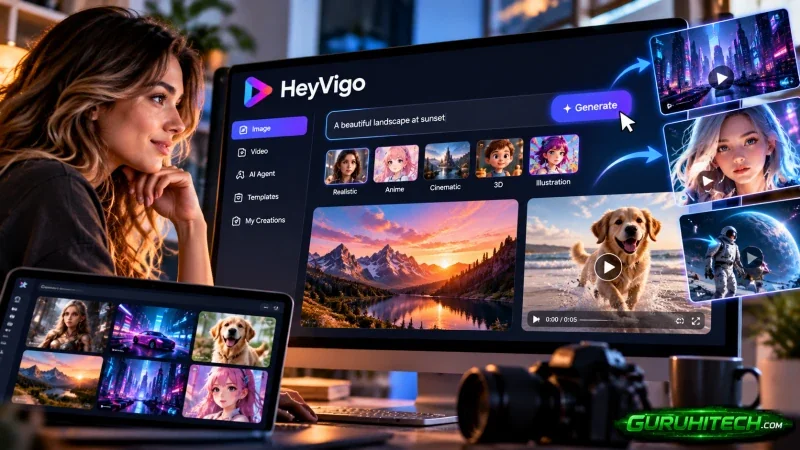
Most AI image and video generators rely on a single-turn interaction: you type a prompt, pick a parameter, and hope the output matches what you pictured. While that works for isolated clips, it breaks down when you need multiple consistent images, sequential video shots, or a cohesive visual story based on a detailed brief.
The HeyVigo AI Agent is designed to solve this specific problem. Rather than acting as a basic prompt box, the Agent workspace functions as an interactive AI production assistant. It takes natural-language instructions, scripts, or reference images, breaks them into structured creative tasks, and coordinates both image and video generation models inside a single workspace.
This review provides a neutral, detailed look at what the HeyVigo AI Agent workspace is, the underlying models it uses, and how to use it step by step for image and video generation.
What Is the HeyVigo AI Agent Workspace?
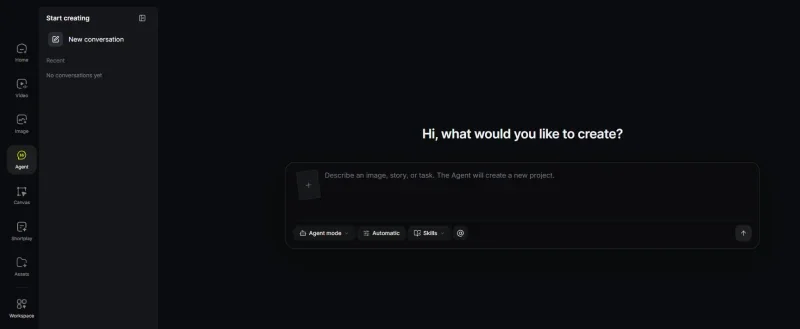
The HeyVigo AI Agent is a task-oriented, conversational workspace. Instead of forcing creators to manually jump between separate text, image, and video interfaces, the Agent workspace centralizes planning, prompt refinement, reference binding, and media rendering in one continuous thread.
When you initialize the Agent workspace, its core role is to bridge the gap between raw creative inputs and reviewable visual outputs:
- Intent & Document Parsing: You can start with a one-sentence idea or upload structured project files. The Agent analyzes the input to extract scene requirements, character traits, camera directions, and visual constraints.
- Image-to-Video Chaining: Rather than generating video blindly from text, the Agent can first generate concept images, character references, or first-and-last keyframes, wait for your approval, and then convert those exact frames into motion video.
- Context Retention: Because the Agent maintains the memory of your current task, you can ask for iterative adjustments—such as changing lighting, camera movement, or aspect ratio—without rewriting your entire prompt from scratch.
Core Capabilities Inside the Agent Workspace
1. Unified Multi-Model Routing
One practical advantage of working inside the HeyVigo AI Agent workspace is that you are not locked into a single proprietary model. It connects to multiple specialized generative engines depending on whether your current step calls for still imagery, motion video, or audio:
- For Image & Keyframe Generation: Integrates models such as GPT Image 2, Gemini 3.1 Flash Image, and Seedream 5.0 Pro to create storyboard frames, product shots, and character portraits.
- For Video Generation: Routes tasks to leading video models including Seedance 2.0 / 2.5, Veo 3.1, Wan 3.3, etc., supporting outputs up to 4K resolution.
- For Voice & Narration: Pairs visual outputs with text-to-speech (TTS) and voice models like Suno, MiniMax, and CosyVoice when a task requires spoken dialogue or voiceovers.
2. Reference-Locked Visual Consistency
A common frustration in AI generation is that a character’s face or a product’s packaging changes slightly with every new prompt. Within the Agent workspace, users can attach reference images directly to the task. The Agent enforces these visual constraints across subsequent image and video generations so the subject remains recognizable from shot to shot.
3. Parallel Exploration and Version Comparison
When testing creative directions—such as different visual hooks for an ad or different camera angles for a scene—the Agent workspace supports parallel generation. Users can generate multiple variations simultaneously, compare how different models interpret the same task constraints, and select the most accurate output before proceeding to the next step.
4. Localized Task Revision
If a generated image has a composition issue or a video clip exhibits motion artifacts, you do not need to restart the entire workflow. Inside the Agent workspace, you can isolate the specific frame or shot, adjust its prompt constraints or parameters, and regenerate only that segment.
How to Use HeyVigo AI Agent for Image and Video Generation
You can follow the steps below to learn how to generate AI images or videos with HeyVigo AI Agent.
1: Initialize the Workspace and Provide Your Input
- Go to the HeyVigo AI website and log in to your account.
- Choose Agent from the workspace list.
- In the Agent input area, define your goal using one of two methods:
- Direct Prompting: Describe what you want to create, including the subject, visual style, target platform, and desired output.
- File Upload: Attach a script, creative brief, or structured document alongside any existing reference images.
2: Review the Agent’s Task Breakdown and Constraints
- Once you submit your brief, the Agent organizes the input into a structured production task—outlining the subject definitions, shot sequence, and visual direction.
- Review these task constraints before triggering heavy generations. You can instruct the Agent to modify scene descriptions, adjust aspect ratios, or clarify camera movements at this stage without spending rendering credits.
3: Generate Base Images and Keyframes First
- For straightforward image needs, instruct the Agent to generate your visuals using its integrated image models.
- If your ultimate goal is a video, use the Agent to generate reference images or first-and-last frames first. Approving the look, lighting, and subject details in a still image first prevents wasted time and credits on flawed video renders.
- If an image needs tweaking, tell the Agent what to fix.
4: Generate Video from Approved Prompts or Frames
1. Once your visual references or keyframes are locked in, instruct the Agent to proceed to video generation.
2. Depending on the materials in your current task, the Agent can execute:
- Text-to-Video: Generating motion directly from the approved scene description.
- Image-to-Video: Animating your newly generated still image while preserving subject consistency.
3. Select or confirm the target video model and resolution settings. Before high-cost generation, the system automatically checks your task permissions and available credit balance.
Step 5: Inspect, Refine Specific Shots, and Export
- Preview the generated images or video clips directly inside the Agent workspace.
- Evaluate small details closely—especially text on product labels or complex hand movements, which generative video models can occasionally distort.
- Once satisfied, download or hand off the final assets for delivery.
Pros and Cons of the Agent Workspace
Pros:
- Structured task planning: Turns messy briefs or multi-scene scripts into organized image and video tasks rather than forcing one-shot prompting.
- Image-to-video continuity: Generating and locking down still keyframes inside the same thread before animating noticeably improves subject consistency.
- Centralized top-tier models: Access to GPT Image 2, Gemini 3.1 Flash Image, Seedance, Kling, Runway, and Veo without juggling separate subscriptions.
- Targeted revisions: Allows users to modify constraints and re-run a single failed frame or shot while keeping the surrounding project context intact.
Cons:
- The Agent mode is available for image and video generation temporarily.
- Vague prompts or low-resolution reference uploads will still lead to unpredictable outputs.
Final Words: Who Should Use the HeyVigo AI Agent?
The HeyVigo AI Agent workspace is best suited for creators who view image and video generation as a multi-step process rather than a single AI Video Generator. It is ideal for e-commerce marketers turning static product photos and briefs into video ads, content creators producing multi-shot narrative sequences or short dramas, and solo producers who want one conversational interface to manage scripting, keyframe generation, and 4K video rendering.
Ti potrebbe interessare:
Segui guruhitech su:
- Google News: bit.ly/gurugooglenews
- Telegram: t.me/guruhitech
- Facebook: facebook.com/guruhitechfb
- Instagram: instagram.com/guruhitech_official/
- X (Twitter): x.com/guruhitech1
- Bluesky: bsky.app/profile/guruhitech.bsky.social
- Rumble: rumble.com/user/guruhitech
- VKontakte: vk.com/guruhitech
- MeWe: mewe.com/i/guruhitech
- Skype: live:.cid.d4cf3836b772da8a
- WhatsApp: bit.ly/whatsappguruhitech
Esprimi il tuo parere!
Ti è stato utile questo articolo? Lascia un commento nell’apposita sezione che trovi più in basso e se ti va, iscriviti alla newsletter.
Per qualsiasi domanda, informazione o assistenza nel mondo della tecnologia, puoi inviare una email all’indirizzo [email protected].
Scopri di più da GuruHiTech
Abbonati per ricevere gli ultimi articoli inviati alla tua e-mail.