

External Hard Drive Not Showing up on Windows? Fix It Successfully
When your external hard drive doesn’t show up on Windows, it’s easy to freak out. You sit there, probably wondering, “Why is my external hard drive not showing up, and what happened to my files?” But don’t panic. Here, in this guide, we’ll tell you the frequent reasons behind the ‘external hard drive not showing up’ issue, and how you can fix it accordingly. We’ll also share a tip that can help you retrieve your files successfully.
Part 1: Why Is My External Hard Drive Not Showing up on Windows?
If you’re wondering, “Why is my external hard drive not showing up on Windows,” it could be because of certain reasons, such as:
- Physical & Connection Issues: Faulty or loose USB cable, bad USB port, not enough power for the drive, or damaged external drive.
- Driver & Software Issues: Outdated, missing, or broken drivers, or the driver didn’t install properly.
- Partition & File System Issues: Drive missing a letter, new or unpartitioned drive, corrupted or unreadable file system, or drive formatted for another OS.
- Windows & System Issues: Disabled in BIOS/UEFI, hidden in Windows, virus or malware interference, or a temporary system glitch or fast startup problem.
Part 2: How to Recover Data from an External Hard Drive Not Showing Up?
If your external hard drive is not showing up on Windows 11/10, it’s impossible for you to extract its data manually. However, with specialized external drive recovery software like 4DDiG Data Recovery, you can retrieve your crucial files quite successfully. It offers a 99% recovery rate, and can extract data from unreadable, corrupted, or unbootable drives without a hitch. Here’s more about what this tool can achieve:
- Can retrieve hidden, corrupted, missing, and accidentally erased files from numerous internal/external storage media.
- It offers up to 2 GB of free data recovery for Windows users.
- It supports 2,000+ file types, including RAW files, music, video, and pictures, among others.
- The tool lets you preview restored files by location and type.
Here’s how to retrieve files from the problematic external disk with this tool:
Step 1: Attach your problematic external drive to your computer. Then, open the external disk recovery tool.
Step 2: Choose the problematic disk. Next, pick your desired file types. Tap “Scan.”
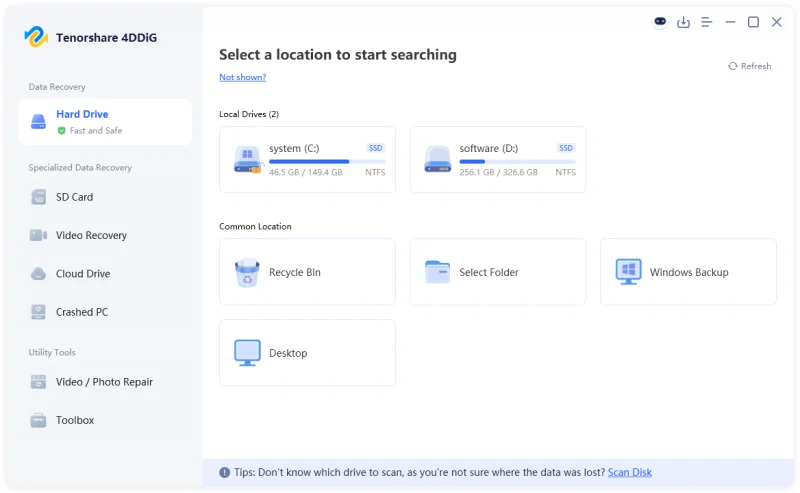
Step 3: Stop or pause scanning once you find the files you were looking for. Preview the recovered files by their path and type.
Step 4: You can modify filters and input keywords in the search field to find the exact files. Hit “Recover” to export the retrieved files to your computer or cloud drive.
Part 3: How to Fix External Hard Drive Not Showing Up in File Explorer?
After you’ve successfully retrieved data from your external hard drive that’s not showing up on PC, the next step is to resolve this issue. However, the solutions differ based on where the external hard drive is not showing up, whether it’s File Explorer or Disk Management. If the disk appears on Disk Management, but not on File Explorer, here are 6 solutions to resolve this problem:
Fix 1: Assign an Unused Drive Letter
Your external media might share its assigned identifier letter with another one of your storage disks. In such a case, your external hard drive does not show up on File Explorer. But, you can assign it another unused letter in the Disk Management. To do so:
Step 1: Attach your problematic external drive to your computer. Then, press the “Win + X” keys. Execute “Disk Management.”
Step 2: Right-click the problematic disk. Next, pick “Change Drive Letter and Paths.”
Step 3: Tap “Change.” Choose a new and unused drive letter from the drop-down. Hit “OK.” Your external disk’s letter will be changed.
Fix 2: Update or Reinstall Disk Drivers
When your external hard drive is not showing up in File Explorer, it could be because of an obsolete or corrupted disk driver. In such a case, update the driver in Device Manager. But if that doesn’t do the job, reinstall it. Here’s how:
Step 1: Attach your problematic external drive to your computer. Then, press the “Win + X” keys. Execute “Device Manager.”
Step 2: Hit “Disk drives” to expand it. Then, right-click your external disk driver. Next, choose “Update driver.”
Step 3: Either download the external driver from the manufacturer’s site and install it manually or let Windows find a compatible one.
Step 4: If still your external hard drive is not showing up in File Explorer, right-click the driver in the Device Manager. Then, tap “Uninstall device.”
Step 5: Visit “Action” in the menu. After this, select “Scan for hardware changes.” Windows will automatically reinstall the driver. Next, reboot your computer.
Fix 3: Check File System Compatibility
Your drive may be formatted for a different operating system, such as Mac. This could be why your external hard drive does not show up on File Explorer. So, check file system compatibility in Disk Management. If it appears as “RAW” or in a Mac format (e.g., HFS+, APFS), format it to a Windows-compatible file system such as NTFS.
Fix 4: Run CHKDSK to Repair Disk Errors
Bad sectors or corrupted file systems might be the cause of the ‘external hard drive not showing up in File Explorer’ issue. So, run the Windows-embedded CHKDSK utility that can repair disk errors. Here’s how:
Step 1: Attach your problematic external disk to your computer. Then, type “cmd” in the Windows search field. Execute “Command Prompt.”
Step 2: Input the following command. Hit “Enter” afterward:
- CHKDSK [Here place the external drive letter]: /f /r /x
Step 3: Wait for CHKDSK to fix the repairs. Then, reboot the computer. Reattach your external drive and see if it appears on File Explorer.
Fix 5: Run the Windows Troubleshooter
Minor hardware issues can also result in the external hard drive not showing up on PC. For this exact problem, you can employ the Windows Hardware and Devices Troubleshooter. It can fix minor external drive settings and connection issues. Here’s how to execute it:
Step 1: Attach your problematic external drive to your computer. Then, type “cmd” in the Windows search field.
Step 2: Execute “Command Prompt.” Then, input the following command. Hit “Enter” afterward:
- msdt.exe -id DeviceDiagnostic
Step 3: This will execute the Troubleshooter. Hit “Next.” Then, follow the on-screen prompts to fix any hardware problems the Troubleshooter detects.
Fix 6: Initialize Your Disk
Your disk might be new and uninitialized, or its file system is completely wiped off due to some unknown reasons. This could be why the external hard drive is not showing up on Windows 11/10. If it appears as “Unknown” or “Not Initialized” in Disk Management, you can initialize it, create a partition, and format it. Follow the steps beneath to resolve the ‘external hard drive not showing up on PC’ issue by initializing the disk:
Step 1: Attach your problematic external drive to your computer. Then, press the “Win + X” keys. Execute “Disk Management.”
Step 2: Right-click the problematic disk. Choose “Initialize Disk.” Then, pick a partition style, like GPT for Windows 10/11. Hit “OK.”
Step 3: Right-click on the unallocated space in the disk. Next, choose “New Simple Volume.” Click “Next.”
Step 4: Set up the file system and volume size. Then, assign a drive letter. Untick “Perform a quick format.” Hit “Next” to start the formatting process.
Part 4: How to Fix External Hard Drive Not Showing Up in Disk Management?
In a situation, where your external hard drive is not showing up in Disk Management, it’s usually because of hardware or connection issues or malware. Here are 4 solutions to fix these problems:
Fix 7: Check Physical Connections and Power Supply
The problem behind your external hard drive not showing up in Disk Management might be due to a loose or malfunctioning USB connection. So, here’s what to do:
- Make sure the cable is plugged in securely and check for any damage.
- If the cable looks worn out, replace it.
- You should also try a different USB port and avoid using weak USB hubs.
- Check if the power light is showing up on the drive.
- Make sure the power adapter is plugged in properly.
- Use the correct adapter with the right voltage and check for damage.
- Try a different power outlet or a compatible adapter if it still won’t turn on.
Fix 8: Restart Your Computer
Often, an external hard drive does not show up on Disk Management because of minor software glitches or background processes. But restarting your computer can often fix this. So, simply switch off your PC, turn it back on, and reconnect the external drive to check if it is detected.
Fix 9: Test the Affected Hard Drive on Another PC
Sometimes, when an external hard drive is not showing up in Disk Management, the issue is not with the disk but with your computer. So, attach the drive to another computer to see if it functions there.
Fix 10: Clean Up Virus
If you’re used to downloading files from dubious sites on your external drive or connecting it often with public computers, it might be infected with malware. The virus can hide files or corrupt the file system, which could be why the disk doesn’t appear on Disk Management. So, to fix the ‘external hard drive not showing up on Windows 11/10’ issue, download antivirus software like Kaspersky, Avast, etc. Then, scan both your computer and drive for viruses.
Bottom Line
If you were wondering before, “Why is my external hard drive not showing up,” we’ve shared the reasons above. You can troubleshoot the ‘external hard drive not showing up’ error by changing the drive letter, updating or reinstalling drivers, or running CHKDSK.
Initializing the disk, checking cables, or scanning for viruses can also fix this issue. But before doing any repairs, it’s important to recover your files, or you might lose them permanently. 4DDiG Data Recovery is a dependable tool that can retrieve hidden, lost, or corrupted files from external/internal drives with high success.
Scopri di più da GuruHiTech
Abbonati per ricevere gli ultimi articoli inviati alla tua e-mail.