
5 Best Free Online Video Editors with No Watermark in 2026
In 2026, video is no longer optional—it’s the default format for communication. Whether you’re creating content for social media, internal presentations, product demos, or SEO-driven blog posts, video editing is now part of the everyday workflow.
But here’s the problem most users run into almost immediately:
You find a “free” online video editor, you upload your video, you make your edits.
And when you click export… there it is—a watermark.
Or worse, a paywall.
This isn’t accidental. Most online video editors are built on a freemium model where basic usage is free, but clean exports (no watermark, HD quality, or even access to your own file) are locked behind a subscription.
So the real question isn’t:
“Which video editor should I use?”
It’s:
“Which tools are actually free, usable, and don’t trap me at export?”
In this guide, we’ll break down 5 online video editors in 2026, focusing on what actually matters:
- No watermark (or the reality behind it)
- No signup friction
- Real usability (not feature overload)
- Speed and performance
- Practical use cases
More importantly, we’ll challenge a common assumption:
You probably don’t need a “video editor” at all.
For most users, a video cutter is not only enough—it’s the fastest and most efficient solution.
What Actually Matters in a Free Online Video Editor
Before we jump into tools, let’s reset expectations.
Most users searching for a “video editor” are trying to do one of the following:
- Cut out mistakes
- Trim the beginning or end
- Split a clip into smaller parts
- Prepare content for platforms like TikTok or YouTube Shorts
These are editing tasks, but they’re not complex editing.
And yet, many people end up using full-scale editors designed for:
- Multi-track timelines
- Effects and transitions
- Color grading
- Audio mixing
That mismatch creates friction.
So instead of asking “Which editor is best?”, a better question is:
What’s the simplest tool that solves my exact problem?
From a practical standpoint, the criteria become clear:
- No watermark (non-negotiable)
- No forced signup
- Fast upload and export
- Supports standard formats (MP4, MOV)
- Simple trimming interface
This is where video cutters outperform traditional editors. They remove complexity and focus on speed.
Quick Comparison of the 5 Tools
| Tool | Best For | Watermark | Signup | Key Limitation |
| Video Cutter | Fast trimming | No | No | Limited to cutting |
| ZETrimmer | Precise editing | No | No | Slightly more complex |
| Clideo | Feature-rich editing | Yes | Yes | Watermark on free |
| 123Apps | General editing | No (limited) | Optional | 1080p requires payment |
| VideoCompress | Large files | No | No | Only basic cutting |
#1 Video Cutter — The Fastest Way to Edit Video Online
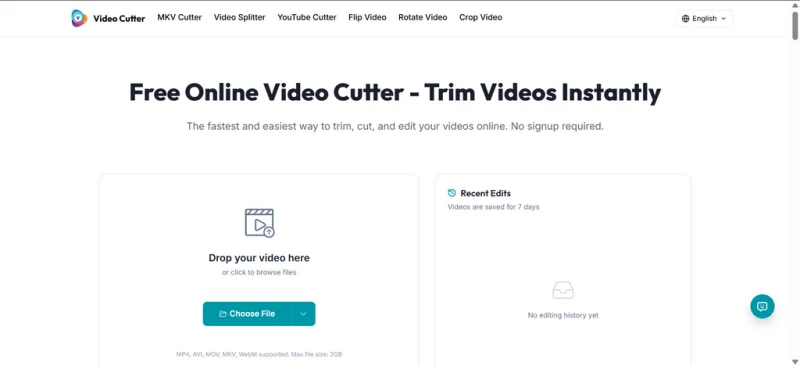
When people say they need a video editor, what they usually need is this:
A way to remove parts of a video quickly, cleanly, and without friction.
This is exactly what a Video Cutter is built for.
Unlike traditional editors that try to do everything, a video cutter focuses on a single task:
cutting and trimming video as fast as possible.
There’s no timeline complexity. No layers. No unnecessary features.
You upload your file, adjust the start and end points, remove what you don’t need, and export.
That’s it.
Why it works so well
The biggest advantage of a video cutter is not just simplicity—it’s speed of execution.
- No login required
- No watermark added
- No feature overload
- No learning curve
For common workflows like:
- Removing awkward intros
- Cutting mistakes from recordings
- Preparing clips for social media
…it’s often faster than any “professional” editor.
And importantly, because these tools are not built around subscription upsells, they don’t block you at the final step.
If your goal is to cut video, not “edit like a pro,” this is the most efficient solution available.
#2 ZETrimmer — When You Need More Precision
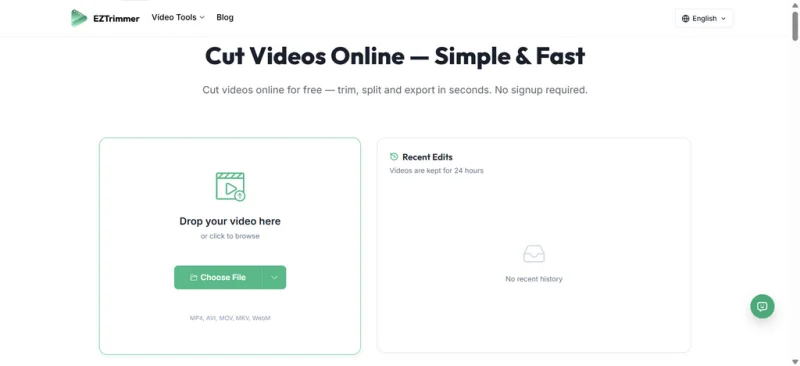
Use ZETrimmer
There’s a point where basic cutting isn’t enough.
Maybe you’re working with dialogue, maybe timing matters, maybe you need cleaner transitions between cuts.
That’s where ZETrimmer comes in.
It sits in a very useful middle ground:
- More precise than a basic cutter
- Still much simpler than a full editor
What makes it different
ZETrimmer allows for frame-level control, which means you can cut your video at exact points instead of approximations.
This is especially useful for:
- Interviews
- Voice-based content
- Tutorials where timing affects clarity
At the same time, it avoids the complexity of full editing suites. You’re not dealing with multiple tracks or effects panels—just a cleaner, more controlled trimming experience.
When to use it
If you find yourself thinking:
“I need more control than a simple cutter, but I don’t want a full editor”
ZETrimmer is the right step up.
#3 Clideo — Feature-Rich, But Not Truly Free
Use Clideo
Clideo represents what most people expect when they search for an online video editor.
It offers:
- Cutting and merging
- Text overlays
- Templates
- Transitions
- Multiple editing tools in one place
On the surface, it looks like a complete solution.
And in many ways, it is.
The trade-off
The problem appears at export.
Free users will notice:
- A visible watermark on the final video
- Certain features locked behind a subscription
- Account requirements for full access
This creates a classic friction point:
You invest time editing your video, only to realize that clean output requires payment.
When it still makes sense
Clideo is useful if:
- You want to test ideas quickly
- You need visual features like text or templates
- You don’t mind upgrading later
But if your goal is strictly no watermark, no payment, it’s not the best fit.
#4 123Apps — Flexible, But With Quality Limits
Use 123Apps Video Editor
123Apps is a well-known collection of browser-based tools, including a video editor.
It offers a balance between simplicity and flexibility:
- Trim, crop, rotate
- Basic editing features
- No watermark on standard exports
At first glance, it feels like a strong free option.
Where it falls short
The limitation becomes clear when you care about quality.
- Exporting in 1080p requires payment
- Some advanced options are restricted
This creates a subtle compromise:
Yes, you can export for free—but not at the quality many users expect in 2026.
Practical takeaway
123Apps works well if:
- You’re editing casual or low-resolution content
- You don’t need HD output
- You want a multi-tool environment
But if quality matters, this limitation becomes a bottleneck.
#5 VideoCompress — Best for Large Files (With a Catch)
Use VideoCompress Video Cutter
File size is one of the biggest hidden problems in online video editing.
Many tools struggle with large uploads.
Some fail completely.
Others slow down dramatically.
VideoCompress solves this by supporting files up to 5GB, which is significantly higher than most browser-based tools.
What it does well
- Handles large video files
- No watermark
- Fast processing relative to file size
The limitation
It’s important to be clear:
This is not a full editor.
- Only supports basic cutting
- No advanced features
- Better suited for short segments rather than complex edits
When it’s the right choice
If your main problem is:
“My file is too large for other tools”
Then VideoCompress is extremely useful.
But if you’re looking for flexibility, you’ll quickly hit its limits.
Video Cutter vs Full Video Editor: What Most People Get Wrong
There’s a common assumption that more features = better tool.
In reality, it’s the opposite for most users.
A video cutter offers:
- Faster workflow
- Lower cognitive load
- Immediate results
- No unnecessary decisions
A full video editor offers:
- More control
- More features
- More complexity
- More time required
The key insight is this:
Most users don’t need more features—they need less friction.
If your goal is to:
- Cut content
- Remove parts
- Export quickly
Then a video cutter is not a “basic” tool.
It’s the optimal tool.
A Simpler Way to Think About Video Editing
Instead of asking:
“Which is the best video editor?”
Ask:
“What is the fastest way to get the result I want?”
For most workflows, the answer is surprisingly simple:
- Upload your video
- Select the part you want to keep
- Remove everything else
- Export
No effects, no layers, no timeline management.
Just outcome-focused editing.
Final Thoughts
The landscape of online video editing in 2026 is crowded—but also predictable.
Most tools follow the same pattern:
- Attract users with “free”
- Add friction at export
- Push toward paid plans
The tools that stand out are the ones that don’t play this game.
- A Video Cutter gives you instant results with zero friction
- ZETrimmer adds precision without complexity
- Tools like Clideo and 123Apps offer more features—but introduce trade-offs
- VideoCompress solves a specific problem (large files), but stays limited by design
If you take one thing away from this guide, it should be this:
You don’t need a powerful video editor.
You need the right level of simplicity.
Start simple.
Move up only when necessary.
That’s how you keep your workflow fast, your output clean, and your time focused on what actually matters.
Ti potrebbe interessare:
Segui guruhitech su:
- Google News: bit.ly/gurugooglenews
- Telegram: t.me/guruhitech
- Facebook: facebook.com/guruhitechfb
- Instagram: instagram.com/guruhitech_official/
- X (Twitter): x.com/guruhitech1
- Bluesky: bsky.app/profile/guruhitech.bsky.social
- Rumble: rumble.com/user/guruhitech
- VKontakte: vk.com/guruhitech
- MeWe: mewe.com/i/guruhitech
- Skype: live:.cid.d4cf3836b772da8a
- WhatsApp: bit.ly/whatsappguruhitech
Esprimi il tuo parere!
Ti è stato utile questo articolo? Lascia un commento nell’apposita sezione che trovi più in basso e se ti va, iscriviti alla newsletter.
Per qualsiasi domanda, informazione o assistenza nel mondo della tecnologia, puoi inviare una email all’indirizzo [email protected].
Scopri di più da GuruHiTech
Abbonati per ricevere gli ultimi articoli inviati alla tua e-mail.