
OCR Online – What’s the Text Extraction Efficiency?
The days of typing by reading sentences word by word are over. Today, we can extract text from images and convert them into editable, searchable files with one click. All thanks to the OCR technology that made this possible.
OCR stands for Optical Character Recognition. It reads text inside an image and turns it into editable digital text. Online OCR tools make this process even easier. You can use them from a browser without installing software.
One such tool is OCR Online, which many people use. But how well does it extract text? Let’s check its text extraction efficiency.
How Does OCR Online Extract Text?
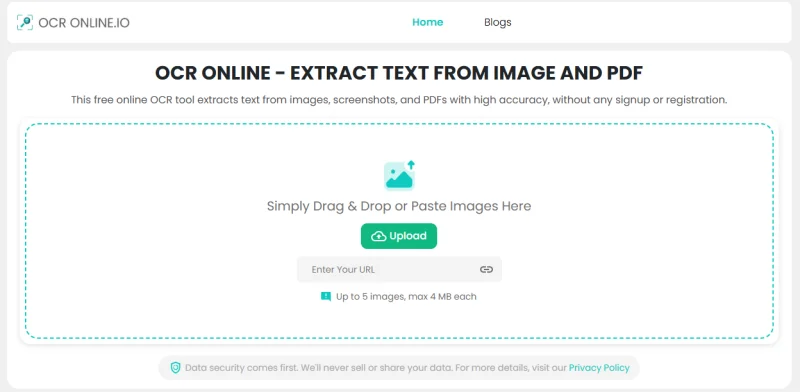
OCR Online is a free image text extractor that is completely browser-based. It uses OCR to detect and extract text from images and PDF files. The tool can extract text from images in bulk and responds quickly.
The basic process looks like this:
- Images or PDF files are submitted to the tool.
- The conversion process is initiated by clicking the ‘Convert’ button.
- Once the conversion is completed, you can copy or download the extracted text.
What Is OCR Text Extraction?
OCR text extraction means converting words from an image into editable text. That image can be of a scanned book page, a screenshot, or a photo of a document.
Whatever the image is of, instead of typing the text yourself, you can extract it using tools like OCR Online. The tool will first scan your images, then identify readable characters within them. Next, the tool gives you text that you can copy, edit, and use in another document.
What Perks Does OCR Online Offer?
OCR Online offers various perks to users, all for free:
- Bulk conversion support
- PDF, TXT, and DOCX download options
- Conversion from image or PDF URL
- Watermark-free results
- Smooth conversion on mobile
- Handwriting and math OCR conversion support
How Efficient Is OCR Online?
How well can OCR Online extract text from an image? This is what many first-time users ask. Let’s find out with a quick test.
Look at the handwritten note inside the image attached below.
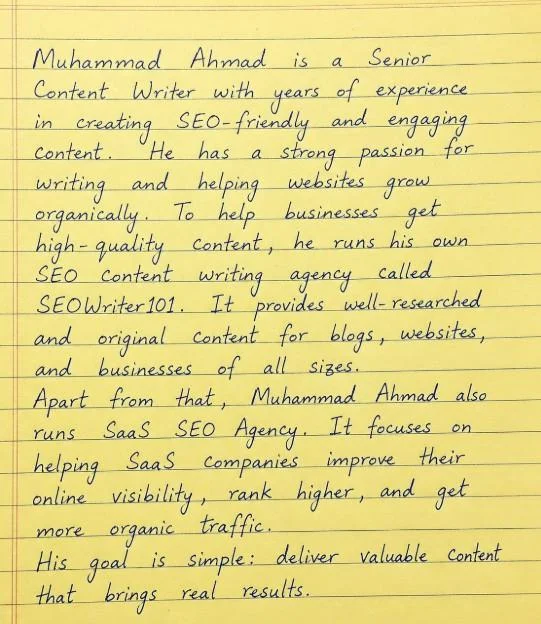
We are going to extract it from this image using OCR Online.
Step 1. Added the image to OCR Online.
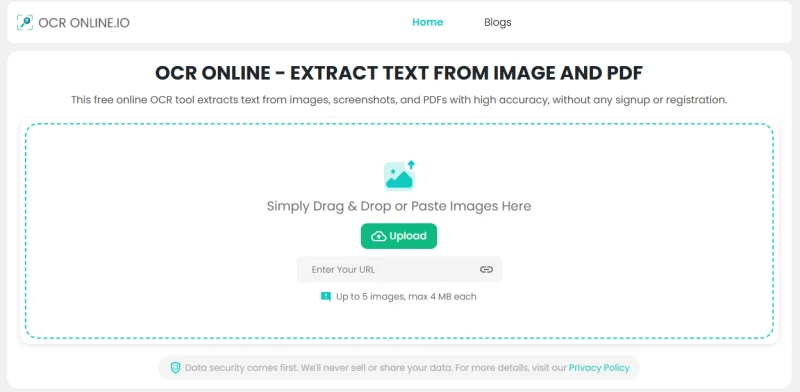
Step 2. Initiated the conversion process.
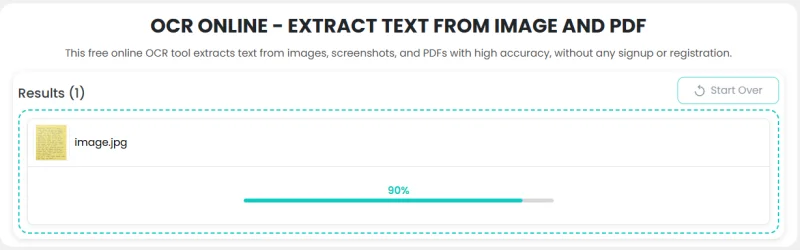
Step 3. Analyzed the results.
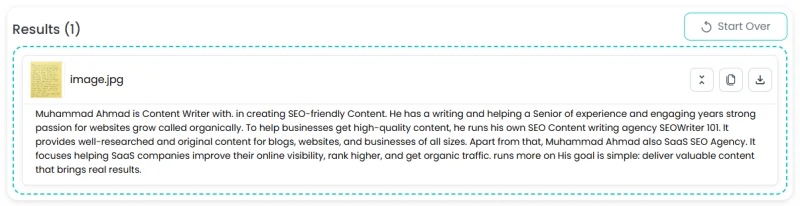
Well, for the image we uploaded to the tool, we got excellent text extraction quality. Besides, being handwritten text, we found no spelling errors or missing characters. That said, OCR Online has good text extraction efficiency. It was quite surprising for us, too.
What Can Affect the Results Quality?
When using OCR Online, a clear image with sharp text usually gives better results. On the other hand, blurry or poorly lit images can make character recognition harder.
Here are some key factors that affect OCR results:
| Factor | Effect on Extraction |
| Image quality | Clear images usually give better results |
| Text size | Larger, readable text is easier to detect |
| Font style | Simple fonts are easier to recognize |
| Image angle | Straight images often produce cleaner output |
| Background | Plain backgrounds help separate text |
| Text layout | Simple layouts can improve recognition |
So, you should not judge OCR efficiency only by the tool. The image itself matters just as much.
Can OCR Online Handle Different Text Formats?
Yes, OCR Online can work with many common types of visual text. However, results can change when the layout becomes more complex.
A simple paragraph usually presents fewer challenges than a page with several columns and tables.
For example, a clean document with one text column may produce easy to read output. A page with multiple columns might disturb the structure and may need some manual editing after extraction.
This does not make OCR useless. Instead, it shows why you should always review the extracted text.
Tips to Get Better OCR Results
You can improve your results by preparing the image before uploading it. Try these simple steps:
- Use the clearest image available.
- Crop out unnecessary parts.
- Keep the text straight.
- Avoid very dark or blurry images.
- Use a high-resolution scan when possible.
- Review the extracted text before using it.
These steps can help the OCR system identify characters more easily.
Final Thoughts
OCR Online makes text extraction quick and simple. We tested the tool in this article, which showed it can handle handwritten text with good accuracy. Still, the final result depends on the image quality and text layout. To get better results, try using clear images with simple layouts.
Ti potrebbe interessare:
Segui guruhitech su:
- Google News: bit.ly/gurugooglenews
- Telegram: t.me/guruhitech
- Facebook: facebook.com/guruhitechfb
- Instagram: instagram.com/guruhitech_official/
- X (Twitter): x.com/guruhitech1
- Bluesky: bsky.app/profile/guruhitech.bsky.social
- Rumble: rumble.com/user/guruhitech
- VKontakte: vk.com/guruhitech
- MeWe: mewe.com/i/guruhitech
- Skype: live:.cid.d4cf3836b772da8a
- WhatsApp: bit.ly/whatsappguruhitech
Esprimi il tuo parere!
Ti è stato utile questo articolo? Lascia un commento nell’apposita sezione che trovi più in basso e se ti va, iscriviti alla newsletter.
Per qualsiasi domanda, informazione o assistenza nel mondo della tecnologia, puoi inviare una email all’indirizzo [email protected].
Scopri di più da GuruHiTech
Abbonati per ricevere gli ultimi articoli inviati alla tua e-mail.
