
Deleted an Important Email? Here’s How to Recover It from Gmail or Outlook
Have you accidentally deleted an important email and don’t know how to get it back? Whether it’s a work message, an invoice, or a personal email, losing it can be frustrating. The good news is that deleted emails aren’t always gone forever. Both Gmail and Outlook include built-in recovery options that may help you restore lost messages. Even if those methods don’t work, there are still ways to recover email data in certain situations.
In this guide, you’ll learn how to recover deleted emails from Gmail and Outlook using their built-in recovery features. We’ll also explain when professional recovery software can help recover locally stored email data after accidental deletion, corruption, or system failure.
Why Do Emails Get Deleted or Lost?
Emails can disappear for many different reasons. Understanding what caused the problem can help you choose the best recovery method.
Accidental Deletion
One of the most common reasons for losing emails is simply deleting the wrong message. This can happen when cleaning your inbox or deleting multiple emails at once. If you notice the mistake quickly, there’s usually a good chance of getting the email back.
Emptying the Trash or Deleted Items Folder
Deleting an email once usually sends it to the Trash (Gmail) or Deleted Items (Outlook). However, if that folder is emptied, the email becomes much harder to recover. Many users don’t realize they still need an email until after they’ve emptied the folder.
Email Synchronization Errors
If you use the same email account on multiple devices, synchronization problems can sometimes make emails disappear or appear to be missing. For example, deleting an email on your phone may also remove it from your computer after synchronization.
Corrupted Outlook PST Files
Microsoft Outlook stores email data locally in PST or OST files. If these files become corrupted because of an unexpected shutdown, disk errors, or software issues, Outlook may not display your emails correctly. In some cases, the emails are still stored on the drive but can’t be accessed normally.
Malware Attacks or System Failures
Viruses, malware, or Windows system problems can damage email files or prevent Outlook from opening them. If the local email database becomes corrupted, recovering the stored email files may still be possible.
Hard Drive Formatting or Computer Crashes
Formatting a hard drive, reinstalling Windows, or experiencing a system crash can remove locally stored Outlook data and cached email files. If the affected storage hasn’t been overwritten, recovery software may still be able to locate those files.
How to Recover Deleted Emails from Gmail
If you’re using Gmail, the recovery method depends on how long ago the email was deleted and whether you’re using a personal Gmail account or Google Workspace.
Method 1: Recover from the Gmail Trash Folder
When you delete an email in Gmail, it isn’t removed immediately. Instead, it’s moved to the Trash folder, where it stays for up to 30 days.
To restore an email from Trash:
- Sign in to your Gmail account. Click Trash from the left menu. If you don’t see it, click More to expand the list.
- Find the email you want to recover.
- Select the email and click the Move to icon at the top.
- Choose Inbox or another folder.
The email will be restored to the selected location.
Limitation
After 30 days, Gmail automatically removes emails from the Trash folder. Once that happens, personal Gmail accounts no longer have a built-in option to restore those messages.
If you’re searching for how to recover deleted emails from Gmail after the Trash folder has been emptied, the available options depend on the type of Gmail account you’re using.
Method 2: Use Gmail Server Recovery (Google Workspace Only)
If your organization uses Google Workspace, an administrator may be able to recover deleted emails even after they’ve been removed from the Trash folder.
To do this, the Workspace administrator can:
- Sign in to the Google Admin Console.
- Select the affected user account.
- Choose the option to restore deleted data.
- Select the recovery time range.
- Start the recovery process.
This feature is only available for Google Workspace accounts and must be used within Google’s supported recovery period.
What About Personal Gmail Accounts?
If you’re using the free version of Gmail, Google doesn’t provide a server recovery option after emails have been permanently removed from the Trash folder.
Some users search for a gmail message recovery tool, but it’s important to understand that Google’s recovery options are limited once the 30-day Trash period has passed.
If the missing email was stored or cached locally on your Windows computer, recovery software may still help recover that local email data in certain situations.
How to Recover Deleted Emails from Outlook
Outlook stores emails differently depending on the account type you’re using. If your email has been deleted, there are several places you should check before assuming it’s permanently gone.
Method 1: Check the Deleted Items Folder
Most deleted Outlook emails are first moved to the Deleted Items folder.
To restore them:
- Open Microsoft Outlook.
- Select the Deleted Items folder.
- Find the email you want to restore.
- Right-click the email.
- Choose Move and select Inbox or another folder.
This is the easiest way to recover deleted emails if they haven’t been permanently removed.
Method 3: Check Outlook Web (OWA)
If you can’t find the missing email in the Outlook desktop app, try signing in to Outlook on the web (OWA). Sometimes your emails are still available online even if they don’t appear in the desktop application because of synchronization issues.
To check Outlook Web:
- Open your web browser and sign in to your Outlook account.
- Open the Deleted Items folder.
- Look for the missing email.
- If you find it, select the email and move it back to your Inbox or another folder.
This method is especially helpful if you’re using Outlook with a Microsoft account or Microsoft 365.
Method 4: Exchange or Microsoft 365 Server Recovery
If your Outlook account is connected to Microsoft Exchange or Microsoft 365, you may have another recovery option.
Even after an email is removed from the Deleted Items folder, it may still be available through Outlook’s Recover Deleted Items feature for a limited time, depending on your organization’s retention policy.
Here’s how to check:
- Open the Deleted Items folder in Outlook.
- Click Recover items recently removed from this folder (or Recover Deleted Items).
- Select the email you want to restore.
- Click Restore.
If the email isn’t available, contact your IT administrator. They may be able to recover it from the Exchange or Microsoft 365 server if it is still within the retention period.
If none of these Outlook methods work, you may still be able to recover locally stored email files using professional recovery software.
How to Recover Permanently Deleted Emails with 4DDiG
When built-in recovery options are no longer available, 4DDiG Windows Data Recovery can help recover locally stored email data that has been lost because of accidental deletion, hard drive formatting, corrupted Outlook files, or system crashes.
Unlike Gmail, which stores emails mainly on Google’s servers, Microsoft Outlook often keeps local email data in PST or OST files on your computer. If these files are deleted or become inaccessible, 4DDiG Data Recovery can scan your storage device and search for recoverable data.
Why 4DDiG Data Recovery Works for Email Recovery
4DDiG Data Recovery is designed to recover lost files from many different data loss situations. For email recovery, it can help restore deleted or lost Outlook data files and other locally stored email data.
Some of its key features include:
- Recover deleted Outlook PST and OST files.
- Recover locally cached email data after accidental deletion or formatting.
- Support recovery from HDDs, SSDs, USB drives, memory cards, and external hard drives.
- Preview recoverable files before restoring them.
- Read-only scanning that doesn’t modify your original data.
- Simple interface that’s easy for beginners to use.
If your email files were lost because of storage problems rather than server deletion, 4DDiG Data Recovery provides a practical recovery solution.
Recover Permanently Deleted Emails with 4DDiG Data Recovery
Recovering gmail email data with 4DDiG Data Recovery only takes a few simple steps.
Step 1: Select the Trash Folder
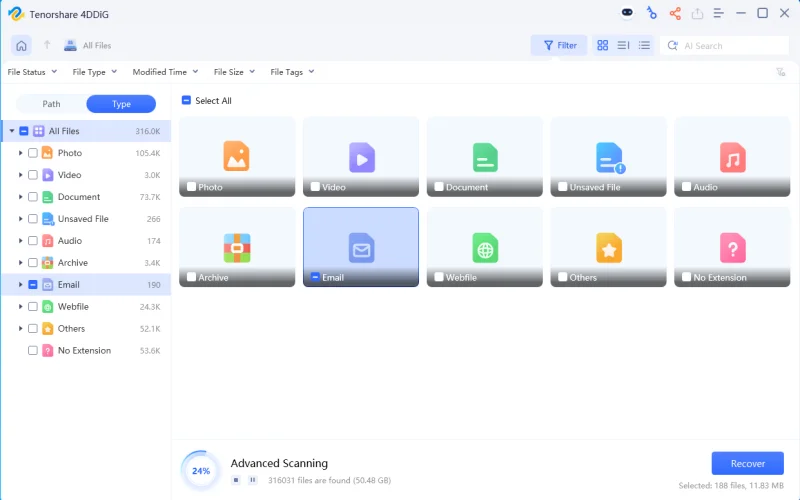
Download, install, and launch 4DDiG Windows Data Recovery. On the main screen, select Trash as the location to scan, then click Start. This allows the software to search for files that were deleted from the Recycle Bin or Trash.
Step 2: Scan and Preview the Email Files
4DDiG Data Recovery will begin scanning the selected location for deleted files. Once the scan is complete, use the Search or Filter options to quickly find email-related files. You can preview the recoverable files before restoring them to make sure you’ve found the ones you need.
Step 3: Recover and Save the Email Files
Select the email files you want to restore and click Recover. Choose a different location to save the recovered files instead of the original drive. This helps protect other recoverable data and reduces the risk of overwriting lost files.
Frequently Asked Questions
Q1: How to recover deleted emails from Gmail after 30 days?
The free version of Gmail doesn’t provide a recovery option after emails have been in the Trash for more than 30 days. Google Workspace users may have additional recovery options through their administrator. If the email data was cached locally on your computer, 4DDiG Windows Data Recovery may be able to scan your drive for recoverable email files.
Q2: How to undelete emails in Outlook after emptying Deleted Items?
If you’ve emptied the Deleted Items folder, use Outlook’s Recover Deleted Items feature if it’s available. This option can often restore emails that were recently removed, depending on your Exchange or Microsoft 365 retention policy. If it isn’t available, check Outlook Web or contact your administrator for additional recovery options.
Q3: Can I recover permanently deleted emails?
Yes, in some situations. If the local email data still exists on your storage drive and hasn’t been overwritten, recovery software like 4DDiG Windows Data Recovery may be able to recover Outlook data files and other locally stored email data.
Q4: Is 4DDiG Data Recovery safe to use for email recovery?
Yes. 4DDiG Data Recovery uses a read-only scanning process, which means it doesn’t write to or modify your storage drive while searching for recoverable files. This helps protect your original data during recovery.
Q5: What if I don’t have a Google Workspace subscription?
If you’re using a personal Gmail account, Google doesn’t offer a recovery option after emails have been permanently removed from the Trash folder. In cases where email data was stored locally on your computer, 4DDiG Windows Data Recovery may help recover cached email files.
Final Thoughts
Losing an important email doesn’t always mean it’s gone forever. If you act quickly, Gmail and Outlook both provide built-in recovery options that may help restore recently deleted messages. Checking the Trash, Deleted Items folder, Outlook Web, or your organization’s recovery tools should always be your first step.
However, if your local Outlook data files were deleted because of formatting, hard drive failure, system crashes, or file corruption, professional recovery software may offer another way to get your data back. 4DDiG Windows Data Recovery makes it easy to scan your storage device, recover lost Outlook data files, and restore important email data with a simple, beginner-friendly process.
Ti potrebbe interessare:
Segui guruhitech su:
- Google News: bit.ly/gurugooglenews
- Telegram: t.me/guruhitech
- Facebook: facebook.com/guruhitechfb
- Instagram: instagram.com/guruhitech_official/
- X (Twitter): x.com/guruhitech1
- Bluesky: bsky.app/profile/guruhitech.bsky.social
- Rumble: rumble.com/user/guruhitech
- VKontakte: vk.com/guruhitech
- MeWe: mewe.com/i/guruhitech
- Skype: live:.cid.d4cf3836b772da8a
- WhatsApp: bit.ly/whatsappguruhitech
Esprimi il tuo parere!
Ti è stato utile questo articolo? Lascia un commento nell’apposita sezione che trovi più in basso e se ti va, iscriviti alla newsletter.
Per qualsiasi domanda, informazione o assistenza nel mondo della tecnologia, puoi inviare una email all’indirizzo [email protected].
Scopri di più da GuruHiTech
Abbonati per ricevere gli ultimi articoli inviati alla tua e-mail.