
How to Use AI Image Generators & Remove Watermarks
It’s amazing what you can create with just a few words. Thanks to artificial intelligence, you can turn a simple idea into a stunning visual in seconds. But creation is only half the battle. You also need your final content, especially video, to look clean and professional. That often means dealing with distracting watermarks.
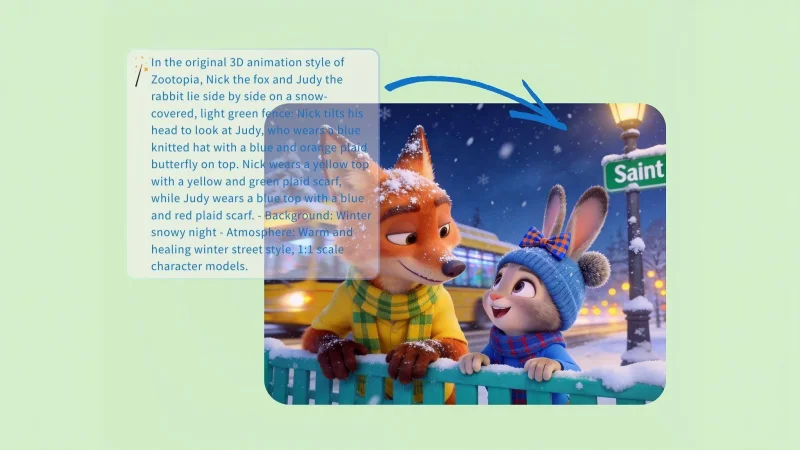
This guide is your all-in-one resource for 2026. We’ll walk you through how to master AI image generation to bring your ideas to life. Then, we’ll show you how to easily remove watermarks from your videos, ensuring your projects look polished and ready for your audience. Let’s get started.
Part 1: Bringing Your Ideas to Life with AI
AI image generation is no longer a futuristic concept; it’s a practical tool for creators, marketers, and anyone with an idea. These tools use complex algorithms to interpret your text descriptions (called “prompts”) and create unique, original images from scratch. It’s like having a personal artist who works at the speed of light.
To get the best results, you need a tool that is both powerful and easy to use. A great platform can make all the difference, turning confusing prompts into beautiful art. The right AI Image Generator offers a streamlined experience, allowing you to focus on your creative vision instead of a complicated interface. You simply type what you want to see, and the AI handles the heavy lifting, delivering high-quality visuals for your blogs, social media, or presentations.
How to Write Prompts That Actually Work
The key to getting a great image is writing a great prompt. The AI is incredibly powerful, but it can’t read your mind. You need to be its eyes and ears. Vague prompts lead to generic images. Specific, descriptive prompts lead to spectacular ones.
Here are a few tips to level up your prompt-writing skills:
- Be Ultra-Specific: Don’t just say “a dog.” Say “a golden retriever puppy with floppy ears, sitting in a field of daisies during a sunny afternoon.” The more details you provide, the closer the AI will get to your vision.
- Include the Style: Do you want a photo, a cartoon, or a painting? Mention the artistic style. For example, try adding phrases like “digital art,” “photorealistic,” “3D render,” “anime style,” or “in the style of a watercolor painting.”
- Think About Lighting and Mood: Lighting changes everything. Words like “cinematic lighting,” “soft morning light,” “dramatic shadows,” or “neon glow” can completely transform the mood of your image.
- Iterate and Refine: Your first prompt might not be perfect, and that’s okay. Look at the result and think about what you want to change. You can add, remove, or modify words in your prompt to get closer to your ideal image. For instance, if the first image is too dark, add “bright and vibrant” to your next prompt.
Common Uses for AI-Generated Images
You might be surprised by how versatile these AI-created visuals can be. They aren’t just for fun; they are powerful assets for professional and personal projects.
- Content for Blogs and Websites: Need a unique featured image for your latest article? You can generate one in seconds that perfectly matches your topic, saving you from scrolling through stock photo libraries.
- Social Media Posts: Create eye-catching visuals for Instagram, Facebook, or X (formerly Twitter). A unique image is much more likely to stop someone from scrolling past your post.
- Marketing Materials: Design custom icons, backgrounds, and illustrations for flyers, brochures, and digital ads without needing to hire a graphic designer.
- Creative Inspiration: Are you feeling stuck on a project? Use an AI generator to brainstorm visual ideas. It can help you explore different styles and concepts quickly.
Part 2: Polishing Your Videos by Removing Watermarks
You’ve created amazing visuals, and now you’re incorporating them into videos. But often, the video clips you use, or the software you edit with, leave a distracting watermark. A watermark can make your content look unprofessional and take the viewer’s focus away from your message. This is where a video watermark remover becomes essential.
These tools are designed to clean up your footage efficiently. A top-tier Free Video Watermark Remover uses smart technology to analyze the pixels around the watermark and fill in the area, making it appear as if it was never there. This is perfect for creators who want to repurpose their own content from different platforms or remove a default logo from a video editing program. The process is straightforward and saves you from having to re-shoot or abandon a great piece of footage.
A Step-by-Step Guide to Removing Watermarks
Using a modern watermark remover is incredibly simple. While every tool is slightly different, they generally follow the same user-friendly workflow.
1. Upload Your Video: The first step is to upload the video file that contains the watermark. Most online tools have a simple drag-and-drop or an “upload” button to get you started.
2. Select the Watermark Area: Once the video is loaded, you’ll be given a tool, usually a resizable box, to place over the watermark. Adjust the box to cover the entire watermark. For the best results, try to make the selection area as close to the size of the watermark as possible.
3. Process the Video: After you’ve highlighted the watermark, you’ll click a “Remove” or “Process” button. The tool’s AI will then get to work. It analyzes the surrounding frames to intelligently reconstruct the area behind the watermark.
4. Preview and Download: Once the processing is complete, you’ll be able to preview the final video to ensure the watermark is gone. If it looks good, you can download the clean, watermark-free video to your device.
Legal and Ethical Considerations You Can’t Ignore
This is important: only remove watermarks from videos that you have the legal right to modify.
- Your Own Content: It is perfectly fine to remove a watermark from a video you created. For example, if a social media platform automatically added its logo to your video, and you want a clean version for your portfolio.
- Royalty-Free and Stock Footage: If you’ve purchased a license for stock footage that came with a watermark, you are generally permitted to remove it. However, removing a watermark from a “preview” version of stock footage to avoid paying for it is a copyright violation.
- Other People’s Content: Do not remove a watermark from a video created by someone else without their explicit permission. Watermarks are often used to protect copyright and credit the creator. Removing it against their wishes is unethical and can have legal consequences. Always respect intellectual property rights.
Putting It All Together: A Seamless Creative Workflow
The real power comes when you combine these tools. Imagine a workflow where you can generate the exact visual you need and then seamlessly add it to a video, confident that you can clean up any unwanted logos or text later.
This combination allows you to maintain a high level of quality and professionalism across all your projects. You can generate custom art for a YouTube thumbnail, create an animated sequence using AI images, and then use a watermark remover to get rid of the logo from your trial video editor. It puts you in complete control of your creative output.
Frequently Asked Questions (FAQ)
What makes a good AI image generator?
A good generator is fast, creates high-resolution images, understands nuanced prompts, and offers a variety of styles. Most importantly, it should be easy to use, so you can focus on being creative.
Is it legal to remove a watermark from any video?
No. It is only legal and ethical to remove watermarks from videos you own or have the rights to use and modify. Never remove a watermark from copyrighted material without permission from the owner.
How specific do my image prompts need to be?
The more specific, the better. Start with a simple idea, then add details about the subject, setting, style, and lighting. The best results come from descriptive and layered prompts.
Do these AI tools work on mobile devices?
Yes, most modern, web-based AI tools are designed to work on both desktop and mobile browsers. This allows you to create images or remove watermarks on the go, right from your phone or tablet.
What’s the difference between a watermark and a logo?
A watermark is a semi-transparent image or text placed over a piece of content to identify its owner. A logo is a brand’s primary symbol. While a logo can be used as a watermark, the term “watermark” specifically refers to the overlay intended to protect the content.
Start Creating Without Limits
AI has unlocked incredible new possibilities for creators. With a powerful image generator, your imagination is the only limit to the visuals you can produce. And with an effective watermark remover, you can ensure your final video projects are polished, professional, and exactly how you envisioned them.
By mastering these tools, you can elevate your content, save time, and bring your unique vision to the world. Why wait? Start exploring, start creating, and take full control of your creative workflow today.
Ti potrebbe interessare:
Segui guruhitech su:
- Google News: bit.ly/gurugooglenews
- Telegram: t.me/guruhitech
- Facebook: facebook.com/guruhitechfb
- Instagram: instagram.com/guruhitech_official/
- X (Twitter): x.com/guruhitech1
- Bluesky: bsky.app/profile/guruhitech.bsky.social
- Rumble: rumble.com/user/guruhitech
- VKontakte: vk.com/guruhitech
- MeWe: mewe.com/i/guruhitech
- Skype: live:.cid.d4cf3836b772da8a
- WhatsApp: bit.ly/whatsappguruhitech
Esprimi il tuo parere!
Ti è stato utile questo articolo? Lascia un commento nell’apposita sezione che trovi più in basso e se ti va, iscriviti alla newsletter.
Per qualsiasi domanda, informazione o assistenza nel mondo della tecnologia, puoi inviare una email all’indirizzo [email protected].
Scopri di più da GuruHiTech
Abbonati per ricevere gli ultimi articoli inviati alla tua e-mail.