
My PC Was Lagging During Heavy Matches: How Smart Game Booster Saved My Gaming Session
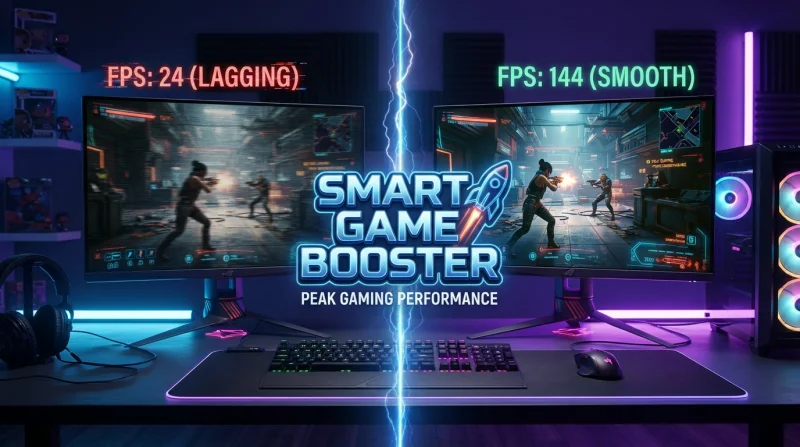
I’ve been gaming on PC for over twelve years, and if there’s one thing that can make me rage-quit faster than a bad teammate, it’s frame stuttering during a ranked match. A few weeks ago, that’s exactly what happened to me in the middle of a close Call of Duty: Black Ops 7 lobby. That frustrating experience finally pushed me to investigate what was slowing down my gaming PC and test a tool I had been putting off trying for months.
The Match That Finally Broke My Patience
It was a Friday night, my squad was leading the series 3-2, and my frame rate suddenly cratered just as I pushed around a corner. The game froze for perhaps half a second, but that was long enough for an opponent to eliminate me and cost us the round.
I had noticed smaller performance hitches during the previous week or two. However, like many PC gamers, I kept ignoring them. At first, I blamed my Wi-Fi connection. Then, I assumed that a recent update had probably broken something. This time, though, the problem became impossible to overlook.
Therefore, I opened Task Manager in the middle of the match. Immediately, I watched my CPU and disk usage spike while several unfamiliar background processes quietly consumed valuable system resources.
My PC isn’t ancient. In fact, a computer equipped with an Intel Core i7 processor and 32GB of RAM should run most competitive games without serious trouble. Consequently, I knew the hardware wasn’t the real bottleneck.
Instead, the main problem was system clutter: unnecessary startup programs, one or two outdated drivers, and a large game library that I had never properly organized. I needed something designed specifically to improve gaming performance, rather than a generic “PC cleaner” that treats a gaming rig like an ordinary office laptop.
Setting Up Smart Game Booster
That’s what led me to Smart Game Booster, a dedicated game optimization application that scans your library, tunes your system, and provides each title with its own performance profile.
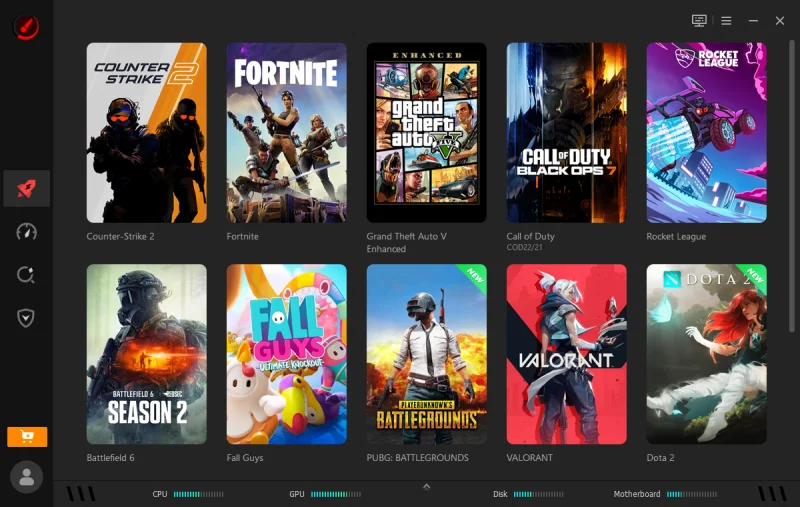
The installation process was painless. As soon as I opened the application, it displayed almost my entire game library on the home screen, including Counter-Strike 2, Fortnite, GTA V Enhanced, Call of Duty: Black Ops 7, Rocket League, and several other titles.
For the few games that Smart Game Booster didn’t detect automatically, I used the “Add Local Game” option. You simply select the game’s executable file, name the performance profile, and add it to the library within seconds. As a result, you can manage and optimize almost every installed game from a single interface.
Turning On PC Boost Before My Next Match
Before jumping back into Black Ops 7, I opened the game’s dedicated page and found two main options: Network Acceleration and PC Boost.
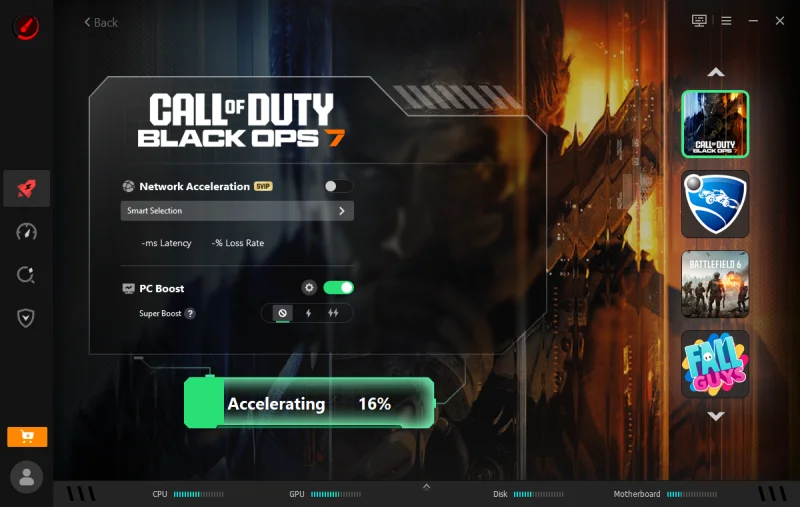
Since the lag appeared to originate from my own computer rather than my internet connection, I focused on PC Boost first. I left Super Boost enabled and then clicked “Accelerate Now.”
Within seconds, Smart Game Booster began working through an optimization checklist in the background. The application closed unnecessary tasks, freed up RAM, and prioritized CPU resources for the game process while the progress bar moved toward 100%.
Once the process finished, the results screen showed exactly what had changed. It reported an overall performance improvement, a reduction in CPU load, and nearly 2GB of RAM released for the game to use.
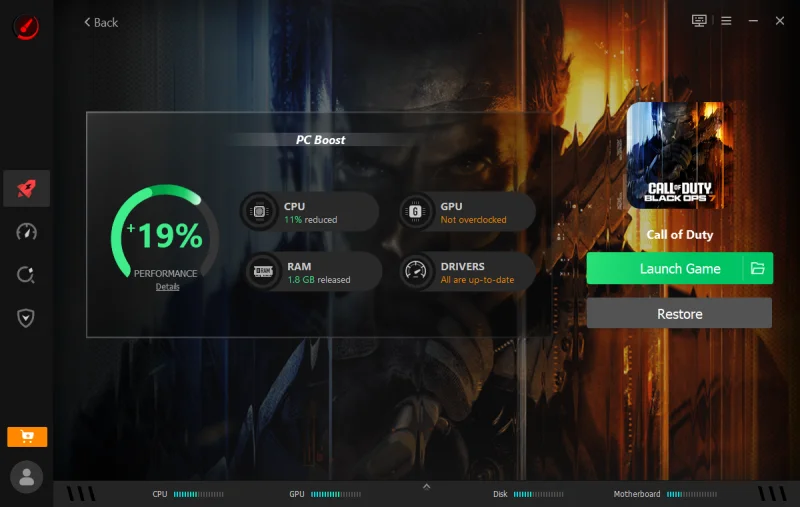
That level of detail may seem minor, but seeing actual performance figures made the optimization process feel much more trustworthy than receiving a vague “optimization complete” message.
I then joined my next match, and the difference was immediate. The stutter that had cost me the previous round was gone. Moreover, frame times remained noticeably more consistent throughout an entire firefight. Performance no longer dropped sharply whenever three or four players appeared on the screen simultaneously.
Deep-Cleaning With the Full System Scan
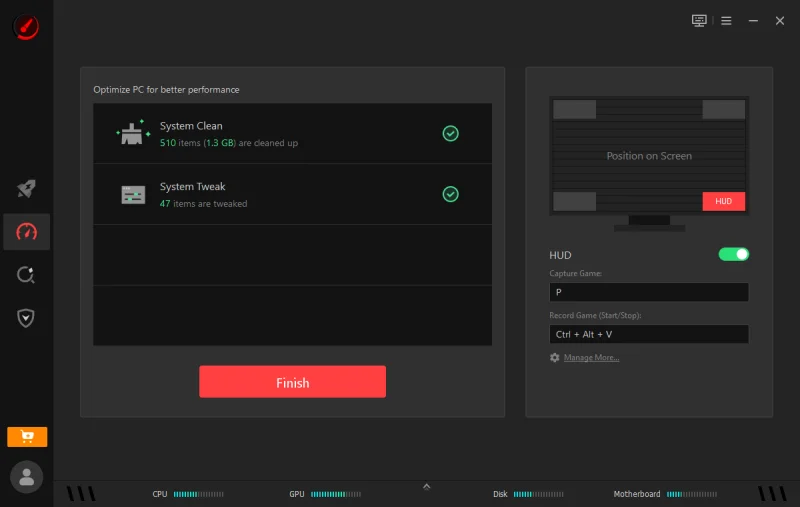
Optimizing one game profile helped, but I also wanted to address the root cause of the slowdown. Therefore, I ran a complete scan through the application’s performance section.
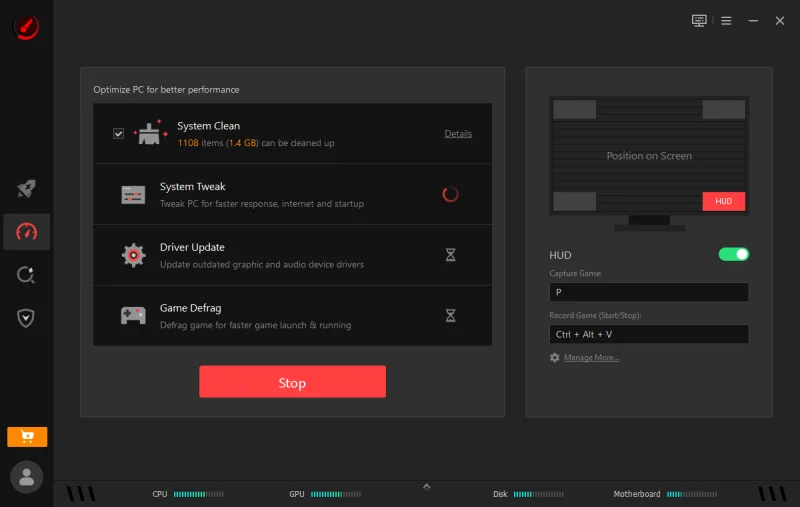
The scan turned up over a thousand junk items eating close to 1.4GB of disk space and 47 system settings that could be tweaked for better responsiveness. I let it apply the fixes, and afterward the summary confirmed everything had been cleaned and tweaked successfully — no more mystery background clutter competing with my game for resources.
Checking Compatibility Before Installing New Games
Since I was already in the app, I also used its “Can I Run It?” tool before downloading a couple of new titles, just to avoid wasting time on something my hardware couldn’t handle. It reads your specs automatically and compares them against a game’s minimum and recommended requirements. This feature is genuinely useful if you’re gaming on a laptop or an older build and don’t want to guess.
For an extra edge on ping-sensitive titles, this is a professional FPS Booster, which focuses specifically on squeezing out extra frames rather than general system cleanup. It’s worth pairing with PC Boost if frame rate, not just stutter, is your main complaint.
A Welcome Security Bonus
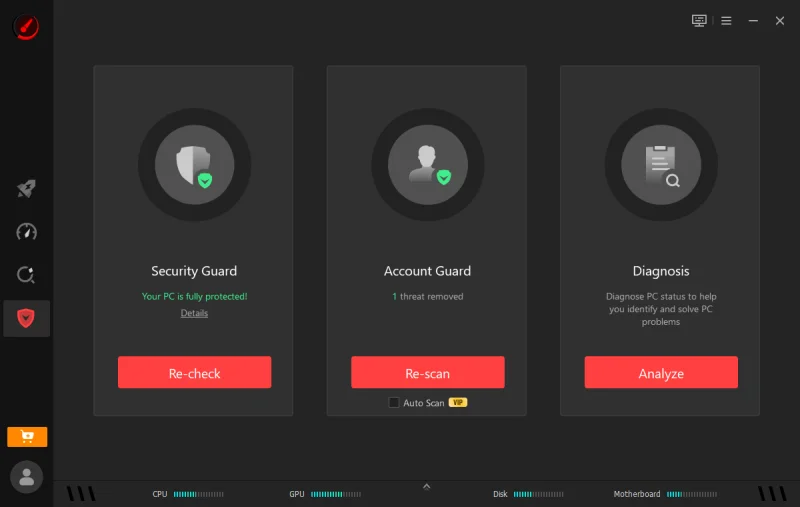
One thing I didn’t expect going in was the built-in protection panel. It runs an Account Guard check for tracking cookies and privacy risks around your game accounts, alongside a Security Guard for antivirus and firewall status, plus a Diagnosis tool that exports a full report if you ever need to troubleshoot with support or a friend. My scan actually flagged a tracking cookie I didn’t know was sitting on my system, and removing it took one click.
My Takeaway
I went into this expecting a placebo-level “optimizer” and came out with a genuinely smoother gaming session and a much better understanding of what was actually bogging my PC down. Smart Game Booster‘s combination of per-game boosting, a full system clean, driver checks, and compatibility testing covers most of the reasons a gaming PC starts to feel sluggish over time. If you’re dealing with the same mid-match stutters I was, it’s worth ten minutes to run the scan yourself before you blame your internet connection or your hardware.
Ti potrebbe interessare:
Segui guruhitech su:
- Google News: bit.ly/gurugooglenews
- Telegram: t.me/guruhitech
- Facebook: facebook.com/guruhitechfb
- Instagram: instagram.com/guruhitech_official/
- X (Twitter): x.com/guruhitech1
- Bluesky: bsky.app/profile/guruhitech.bsky.social
- Rumble: rumble.com/user/guruhitech
- VKontakte: vk.com/guruhitech
- MeWe: mewe.com/i/guruhitech
- Skype: live:.cid.d4cf3836b772da8a
- WhatsApp: bit.ly/whatsappguruhitech
Esprimi il tuo parere!
Ti è stato utile questo articolo? Lascia un commento nell’apposita sezione che trovi più in basso e se ti va, iscriviti alla newsletter.
Per qualsiasi domanda, informazione o assistenza nel mondo della tecnologia, puoi inviare una email all’indirizzo [email protected].
Scopri di più da GuruHiTech
Abbonati per ricevere gli ultimi articoli inviati alla tua e-mail.