
How to Turn One Interview Into Multiple Useful Clips With Video Cutter AI
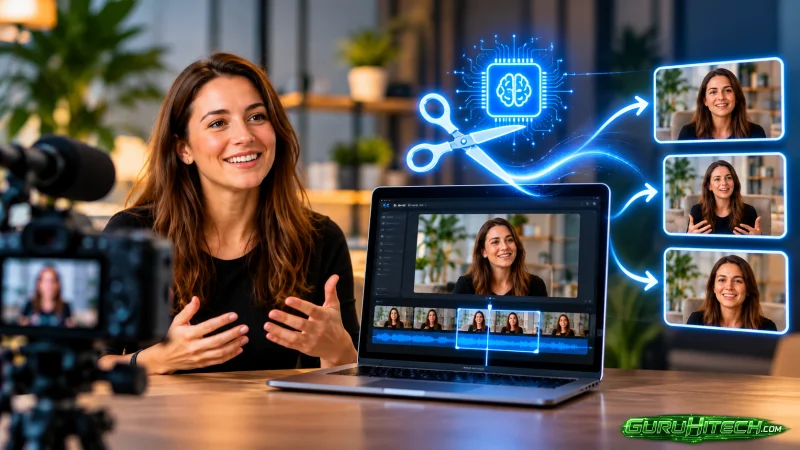
A long interview rarely contains just one story. A guest might answer a common question, explain a process, and challenge an assumption in the same conversation. The difficulty is finding those moments and shaping each one into a clip that makes sense to someone who has never seen the full recording. Video Cutter AI can analyze an uploaded interview or a YouTube link, suggest highlights, generate captions, and reframe clips for short-form viewing. The best results come from giving those automated steps a clear editorial goal.
Start With the Questions Your Audience Actually Asks
Before generating clips, list three to five questions the interview answers. These become your selection criteria. For a conversation about remote onboarding, the questions might be: “What should happen before a new hire’s first day?”, “How do you avoid overwhelming them?”, and “How can a team tell whether onboarding is working?”
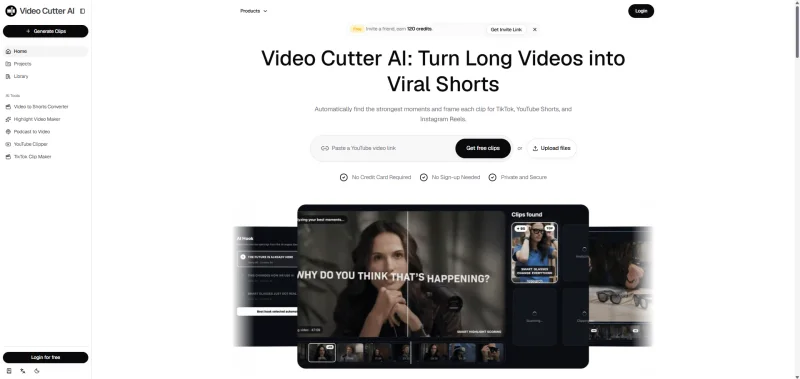
Upload the recording to Video Cutter AI, or paste its YouTube link if it is already published. The tool’s highlight detection gives you candidate moments to review without searching the entire timeline manually. Choose a clip focus and target length that suit the answer you want to share. An informative answer needs enough time to explain its point; a brief reaction may work with less. The YouTube Clipper workflow supports these preferences and lets you preview the suggested clips before export.
Use AI Suggestions as a Shortlist
A promising highlight is a starting point, not automatically a finished interview clip. Watch each suggestion and ask: Can a new viewer identify the topic? Does the guest finish the thought? Is there one useful takeaway? If the answer starts halfway through an explanation, move the beginning earlier. If it continues into a different subject, trim the ending.
This review also prevents a common problem: publishing several clips that all make essentially the same point. From the remote onboarding interview, one clip could explain first-day preparation, another could show how to pace information during the first week, and a third could describe a useful way to gather feedback. Together they form a series; individually, each answers a distinct question.
Refine the Answer Without Losing Its Meaning
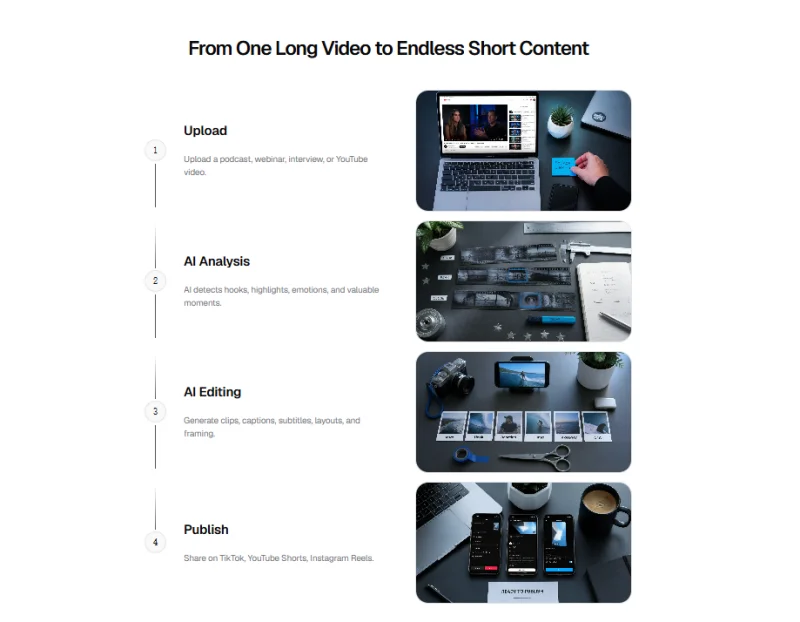
Once you have selected a moment, use the editing pass to remove delays that do not help the viewer. Video Cutter AI lists silence and filler removal among its features. This can be useful when an interview contains connection pauses, repeated starts, or long gaps between the question and the answer. Review the result at normal speed rather than accepting every cut. A pause that separates two ideas may make the explanation easier to understand.
Pay particular attention to the first sentence. If the guest begins with “That depends,” the clip may need a few seconds of the interviewer’s question to establish what depends on what. If the guest states the subject clearly, the answer may stand on its own. Adjust the clip’s start and end points until viewers get the necessary context and a complete conclusion.
Check Captions as Carefully as the Edit
Video Cutter AI can generate captions as part of the clip workflow. They make an interview easier to follow when it is watched without sound, but they still need a human check. Replay names, figures, technical terms, and words spoken over interruptions. A caption that changes one term can change the meaning of an otherwise accurate answer.
Read the captions on a phone-sized screen before exporting. Break up long lines where the speaker naturally pauses, and check that the text does not cover a diagram, product screen, or facial expression that matters to the point. The goal is to help viewers follow the answer, not make the captions compete with it.
Reframe for the Speaker and the Explanation
A landscape interview often has empty space around the speakers when converted to a vertical clip. Video Cutter AI’s Auto Reframe provides a vertical starting point, and its YouTube Clipper guide describes reframing that follows the active speaker. Review the whole result, especially when the speakers take turns or someone points to an object outside the center of the original shot.
Choose the frame according to what the viewer needs to see. For a personal explanation, the speaker’s face may carry the moment. For a demonstration, the object or screen being discussed may need more space. If a crop hides essential information, adjust the composition or choose a different section of the interview. A clip is only useful if the visual still supports the answer.
Turn the Finished Clips Into a Series
Give each exported clip a title based on the question it answers rather than a generic label such as “Interview Highlight 1.” Publish the introductory answer first, then the practical example, then the deeper perspective. Add a link to the full interview when viewers need more detail.
Keep a simple record of each clip’s question, source timestamp, final title, and publishing destination. This is an editorial step outside the clipping tool, but it helps you avoid repeating an idea and makes future reuse easier. When viewers ask a follow-up question, that question can guide the next clip you select—or the next interview you record.
Conclusion
A useful interview clip does more than extract an exciting sentence. It gives a new viewer enough context to understand one complete answer. Video Cutter AI can shorten the search and production work through highlight detection, clip preferences, silence and filler removal, captions, and vertical reframing. Review the suggested moments, refine their boundaries, and check the final sound, text, and frame before publishing.
Video Cutter AI (https://video-cutter.ai/) helps turn long interviews into short-form candidates. Its YouTube Clipper can surface moments for review, while the final decisions about context, accuracy, and which clips to publish remain with the editor.
Try Video Cutter AI: https://video-cutter.ai/.
Ti potrebbe interessare:
Segui guruhitech su:
- Google News: bit.ly/gurugooglenews
- Telegram: t.me/guruhitech
- Facebook: facebook.com/guruhitechfb
- Instagram: instagram.com/guruhitech_official/
- X (Twitter): x.com/guruhitech1
- Bluesky: bsky.app/profile/guruhitech.bsky.social
- Rumble: rumble.com/user/guruhitech
- VKontakte: vk.com/guruhitech
- MeWe: mewe.com/i/guruhitech
- Skype: live:.cid.d4cf3836b772da8a
- WhatsApp: bit.ly/whatsappguruhitech
Esprimi il tuo parere!
Ti è stato utile questo articolo? Lascia un commento nell’apposita sezione che trovi più in basso e se ti va, iscriviti alla newsletter.
Per qualsiasi domanda, informazione o assistenza nel mondo della tecnologia, puoi inviare una email all’indirizzo [email protected].
Scopri di più da GuruHiTech
Abbonati per ricevere gli ultimi articoli inviati alla tua e-mail.